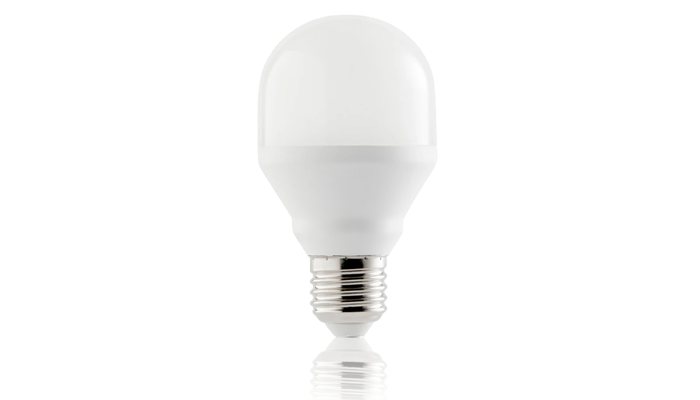
New Device Setup

Everything you need to get started and more

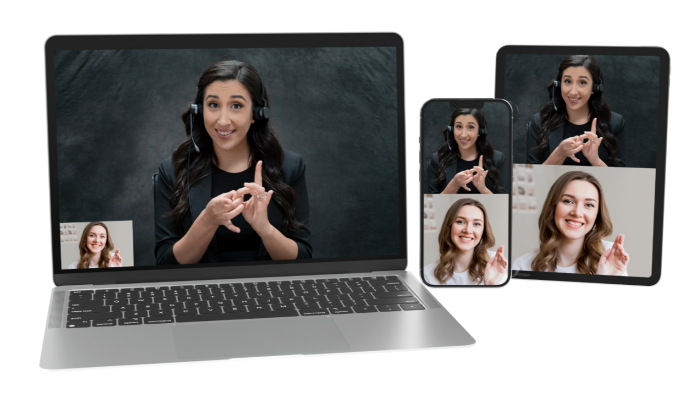
Congratulations on your new device!

To complete your videophone installation, contact our Customer Experience Team at this number:
877.885.3172

Weekdays: 8am to 9pm CT; Saturday: 9am to 6pm CT; Sunday: CLOSED

want to keep track of your passwords?

Click here to download your fillable login password card

Learn more about your device

Interested in learning more about features, user guides, and more?
For more information, click the options below.

Z5/P3 Mobile FAQs

To use Z5/P3 Mobile, you must have an iOS device with either a cellular data or a Wi-Fi connection and a registered ZP number.

A black video player screen with the words "ZP Better Together, ZVRS & Purple Communications"

You do not need a separate number to use Z5/P3 Mobile. Just like with any other ZP VP or app, you use the same ZP number! If someone knows your ZP number, they will be able to reach you via your mobile app!

A black video player screen with the words "ZP Better Together, ZVRS & Purple Communications"
Yes, your mobile device will flash its screen and/or vibrate when you get an incoming call.
A black video player screen with the words "ZP Better Together, ZVRS & Purple Communications"

To switch between the light and dark user interface themes, go to Settings, then tap on “Theme” and select which theme (Light or Dark) you want to use.

A black video player screen with the words "ZP Better Together, ZVRS & Purple Communications"

You can look up local businesses via directory listings using data from Google Maps. Once you locate a business, you can make a call right there in Z5/P3 Mobile via ZP VRS.

A black video player screen with the words "ZP Better Together, ZVRS & Purple Communications"
  • Go to Dial then tap on the magnifying glass icon.
  • Then, type in a business name or a keyword in the Search box.
  • Once the search results come up with pins on the map, tap on the location you desire and click on the “Call” button.
  • You will be connected to a ZP VRS interpreter right away!
A black video player screen with the words "ZP Better Together, ZVRS & Purple Communications"

You can add a photo to a new or an existing contact in your Z5/P3 Mobile.

To add a photo to a new contact, create a new contact by tapping the icon on the upper right corner. Tap on “Add Photo” and choose between “Take Photo” to take a photo right away or “Choose Photo” to choose a photo from your device’s Camera Roll.

To add a photo to an existing contact, open the contact in Contacts and tap on “Edit”. Then, tap on “Add Photo” and choose between “Take Photo” or “Choose Photo”.

Once a photo is selected, adjust the thumbnail before tapping on “Choose” to confirm. Then, tap on “Save” to save the photo to your contact!

A black video player screen with the words "ZP Better Together, ZVRS & Purple Communications"

Don’t worry! You can reach ZP customer experience team by calling 877.885.3172.

A black video player screen with the words "ZP Better Together, ZVRS & Purple Communications"

E911 Geolocation FAQs

Geolocation is the ability to determine your location by using the GPS feature in your mobile phone or your distance from cellphone towers, or Wi-Fi access points.

A black video player screen with the words "ZP Better Together, ZVRS & Purple Communications"

With geolocation, your geographical location can be shared with E911 call center staff so that they can dispatch help to where you are currently located, instead of to your Registered Location on file.

This is especially helpful with mobile devices when you are away from your Registered Location (usually at your home or your office).

A black video player screen with the words "ZP Better Together, ZVRS & Purple Communications"

First, you need to upgrade to the latest version of P3 Mobile or Z5 Mobile, for either iOS or Android.

Second, you must make sure to agree to the new end-user license agreement (EULA) in the upgraded P3 Mobile or Z5 Mobile app. You must also give permission for P3 Mobile or Z5 Mobile to use the device location (aka GPS location). If you’ve already given permission to use device location in the past (such as for Number Lookup), you won’t need to give this permission again.

You will see the new EULA and possibly the permission request for device location after you upgrade your P3 Mobile or Z5 Mobile app and launch these apps.

Once the new EULA is accepted and the permission for device location is given, then your geolocation will be automatically used when you make an E911 relay call.

A black video player screen with the words "ZP Better Together, ZVRS & Purple Communications"

Our geolocation provider was not able to process your E911 address. Please contact Customer Support to resolve the issue.

A black video player screen with the words "ZP Better Together, ZVRS & Purple Communications"

Yes. In the text chat between you and the VI, you will see the latest approximate address based on converting your GPS coordinates to the best possible street address. Your GPS will be checked periodically while you are on the E911 call to see if your location changes; if that happens, a new approximate address will appear in the text chat.

A black video player screen with the words "ZP Better Together, ZVRS & Purple Communications"

No, geolocation is only available on mobile devices*, including tablets with LTE connection or WiFi capabilities.

*mobile devices include iPhones and Android phones. Tablets include iPads and Samsung Tablet.

A black video player screen with the words "ZP Better Together, ZVRS & Purple Communications"

E911 Geolocation Spanish FAQs

La geolocalización es la capacidad de determinar su ubicación utilizando la función GPS de su teléfono móvil o su distancia a torres de telefonía móvil o puntos de acceso Wi-Fi.

A black video player screen with the words "ZP Better Together, ZVRS & Purple Communications"

Con la geolocalización, su ubicación geográfica puede ser compartida con el personal del centro de llamadas E911 para que puedan enviar ayuda al lugar donde se encuentra actualmente, en lugar de a su ubicación registrada en el archivo.

Esto es especialmente útil con dispositivos móviles cuando está lejos de su Ubicación Registrada (normalmente en su casa u oficina).

A black video player screen with the words "ZP Better Together, ZVRS & Purple Communications"

En primer lugar, debe actualizar a la última versión de P3 Mobile o Z5 Mobile, ya sea para iOS o Android.

En segundo lugar, debe asegurarse de aceptar el nuevo contrato de licencia de usuario final (CLUF) de la aplicación actualizada P3 Mobile o Z5 Mobile. También debe dar permiso para que P3 Móvil o Z5 Móvil utilicen la ubicación del dispositivo (también conocida como ubicación GPS). Si ya ha dado permiso para utilizar la ubicación del dispositivo en el pasado (por ejemplo, para la búsqueda de números), no necesitará dar este permiso de nuevo.

Verá el nuevo CLUF y posiblemente la solicitud de permiso para la localización del dispositivo después de actualizar su aplicación P3 Mobile o Z5 Mobile e iniciar estas aplicaciones.

Una vez aceptado el nuevo CLUF y concedido el permiso para la localización del dispositivo, su geolocalización se utilizará automáticamente cuando realice una llamada de retransmisión E911.

A black video player screen with the words "ZP Better Together, ZVRS & Purple Communications"

Nuestro proveedor de geolocalización no ha podido procesar su dirección E911. Póngase en contacto con el servicio de atención al cliente para resolver el problema.

A black video player screen with the words "ZP Better Together, ZVRS & Purple Communications"

Sí. En el chat de texto entre usted y el VI, verá la última dirección aproximada basada en la conversión de sus coordenadas GPS a la mejor dirección de calle posible. Su GPS se comprobará periódicamente mientras esté en la llamada al E911 para ver si su ubicación cambia; si eso ocurre, aparecerá una nueva dirección aproximada en el chat de texto.

A black video player screen with the words "ZP Better Together, ZVRS & Purple Communications"

No. Por el momento, la geolocalización sólo está disponible para teléfonos móviles con GPS. Estamos considerando añadir en el futuro la geolocalización a otros dispositivos como portátiles, ordenadores de escritorio, OneVP y Portal.

A black video player screen with the words "ZP Better Together, ZVRS & Purple Communications"

1. Who will benefit from using CLOUDVP?

Everyone for use at home and work. Especially at work because they don’t have to worry about dealing with IT and software installation. CLOUDVP also works well with corporate firewalls.

A black video player screen with the words "ZP Better Together, ZVRS & Purple Communications"

Maybe! It is dependent on the user allowing notifications within their browser settings, but if you use Chrome or Edge, you can answer the call from within the on-screen system notification and it will automatically maximize the window. For Firefox, an alert will show which the user can select to maximize the browser and then answer the call. Of course, if they have a P3 or Z5 app on their mobile device, they will get the notification like they always have.

A black video player screen with the words "ZP Better Together, ZVRS & Purple Communications"

No, once the web browser running CLOUDVP is closed, not minimized, the connection will be disconnected. If you attempt to launch CLOUDVP while the call is ringing on another endpoint, you will not be able to answer the call on CLOUDVP like you’re able to do with the P3 Desktop for macOS or Windows.

A black video player screen with the words "ZP Better Together, ZVRS & Purple Communications"

This may be due to your browser’s permission settings.

  • Google Chrome Browser:
    • Click on three vertical dots located in the upper right corner of the browser.
    • Select “Settings”
    • Go to “Privacy and security”
    • Select “Site settings”
    • Select “Notifications”
    • On the option “Allowed to send notifications” select “Add” and enter “cloudvp.purplevrs.com” or “cloudvp.zvrs.com”
  • Apple Safari Browser:
    • Click “Safari”, select “Preferences…”
    • Select “Websites”
    • Check “Camera”, “Microphone”, and “Notifications”, be sure to change the permissions to “ALLOW” for the URL “cloudvp.purplevrs.com” or “cloudvp.zvrs.com”
  • Microsoft Edge:
    • Click on three horizontal dots located in the upper right corner of the browser.
    • Select “Settings” then select “Cookies and site permissions”
    • Select “All Sites”
    • Select “purplevrs.com” or “zvrs.com”
    • Check “Camera”, “Microphone”, and “Notifications”, be sure to change the permissions to “ALLOW” for the URL “cloudvp.purplevrs.com” or “cloudvp.zvrs.com”
  • Mozilla Firefox:
    • Click on the three-row icon in the upper right corner of the browser.
    • Select “Settings” then type “Permissions” in the search field.
    • Check each permission for Camera, Microphone, and Notifications.
    • Be sure the status is showing “ALLOW” for the URL “cloudvp.purplevrs.com” or “cloudvp.zvrs.com”
A black video player screen with the words "ZP Better Together, ZVRS & Purple Communications"
  • Yes, there is an extension that can be installed with the Google Chrome browser. Note, this is not fully supported by the Purple/ZVRS customer service support team.
  • Picture-in-Picture Extension: Click here for the extension.
A black video player screen with the words "ZP Better Together, ZVRS & Purple Communications"

Desktop or laptop running Windows, macOS, or Google Chromebook with a webcam and internet service. Bi-directional internet bandwidth of 512k is the preferred minimum. Optional: microphone and headphones/speaker.

A black video player screen with the words "ZP Better Together, ZVRS & Purple Communications"
Without a webcam, CLOUDVP will be in a limited mode allowing you to access your contacts, call history, check video mail. You will not be able to make and receive video calls.
A black video player screen with the words "ZP Better Together, ZVRS & Purple Communications"

Google Chrome, Apple Safari, Microsoft Edge, and Mozilla Firefox are the supported browsers for CLOUDVP.

A black video player screen with the words "ZP Better Together, ZVRS & Purple Communications"

You may be able to improve the user experience by manually adjusting the amount of bandwidth CLOUDVP uses within the Call Settings > Max Bit Rate settings. Select the most appropriate setting for your needs and save. Note: This setting will be used for any CLOUDVP login with the current account, even if on a different device.

A black video player screen with the words "ZP Better Together, ZVRS & Purple Communications"

Two possible scenarios:

  1. Scenario #1: Your macOS’ Do not Disturb feature may be enabled. You will want to disable it.
  2. Scenario #2: There is a setting within macOS that may disable the browser app’s notifications. Here’s how to check your browser app’s settings:
    • Go to “System Preferences…”
    • Select “Notifications”
    • Find your preferred browser app in the list.
    • Check “Allow Notifications” and choose the alert style to either Banners (temporary) or Alerts (stays on until you dismiss).
A black video player screen with the words "ZP Better Together, ZVRS & Purple Communications"

Text chat can be used on VP calls with other CLOUDVP users or with the interpreter on VRS calls. Text chat cannot be used directly with other non-CLOUDVP endpoints.

A black video player screen with the words "ZP Better Together, ZVRS & Purple Communications"

Since CLOUDVP is a web-based technology, you should be able to adjust the font size to your liking. On macOS, you can hold the Command (CMD) key and press “=” to increase or “-” to decrease. On Windows, you can hold the Control (CTRL) key and press “=” to increase or “-” to decrease.

A black video player screen with the words "ZP Better Together, ZVRS & Purple Communications"

Yes, this is important that you must use Google Chrome browser which has the Live Caption built in. Also, it is important that you make sure your call settings has Hearing Carry Over (HCO) feature in CLOUDVP turned on. The purpose is for audio to transmit through your browser as it can listen and automatically transcribe into captioning.

To enable Live Caption in Google Chrome, the instruction can be found at https://support.google.com/chrome/answer/10538231?hl=en

A black video player screen with the words "ZP Better Together, ZVRS & Purple Communications"

You can contact our Customer Experience Team (CET) by calling 877.885.3172. They are more than happy to assist you.

A black video player screen with the words "ZP Better Together, ZVRS & Purple Communications"

Welcome to ZP for Zoom!

Now you can invite a highly qualified Sign Language Interpreter directly into your Zoom meeting on demand.

Zoom is a very robust and customizable tool. Whether you are attending a meeting or hosting a meeting, this user guide will help you get up and running with the basics you need to include a ZP ASL Interpreter in a Zoom meeting.

This document includes recommendations on how to configure Zoom meetings to work best for you when a ZP ASL Interpreter is part of a meeting.

NOTE: ZP for Zoom is for Zoom Meetings. It is not available for Zoom Webinars.

Before you begin exploring the user guide, it’s important to determine which of the three areas best fits your need. Are you a deaf person participating in a zoom meeting? Are you a meeting host with deaf or hard of hearing members in attendance? Or are you a deaf or hard of hearing meeting host yourself? Choosing one of these options will guide you to the support information you need going forward.

If you already have Zoom installed, you may also skip this step.

  1. Go to https://zoom.us/download#client_4meeting.
  2. Under the Zoom Desktop Client, click the Download button.
  3. In the browser’s downloaded files area click ZoomInstallerFull.exe. 
  4. Follow the instructions to create a Zoom account.

There are two ways to install the ZP for Zoom app.

One way to do it is from the Zoom Client

  1. Open Zoom and sign into your Zoom account.
  2. On the top menu click the Apps icon.
  3. Click the Add Apps button.
  4. In the Search App field enter “ZP for Zoom”.
  5. Click the Get button next to the ZP for Zoom app.
  6. Click Add to install.
  7. Click Open.
  8. Click Allow.
  9. (If you see Disabled or Request instead of Add, contact your admin to request approval for the app).
  10. Select Allow.
  11. Once you see “Sign in with your ZP VRS account” screen, the app is installed and ready for use.
  12. See instructions below to invite an interpreter.

The second way to install the ZP for Zoom app is via the Zoom App Marketplace

  1. Go to the Zoom App Marketplace at https://marketplace.zoom.us/.
  2. Click Sign In to sign in to the marketplace.
    • Enter your Email Address.
    • Enter your Password.
    • Click Sign In. You are logged in to the Zoom App Marketplace.
  3. In the Search a published app field enter “ZP for Zoom”.
  4. Select ZP for Zoom from the dropdown menu.
  5. Click Add to install the app.
  6. Select Allow.
  7. Once you see “Sign in with your ZP VRS account” screen, the app is installed and ready for use.
  8. See instructions below to invite an interpreter.
  9. (If you see Disabled or Request instead of Add, contact your admin to request approval for the app.)

To sign into the ZP for Zoom App, first…

  1. Sign in to Zoom.
  2. Join the Zoom meeting.
  3. In the Participant controls toolbar click the Apps Icon. The Apps Sidebar opens.
  4. Click on “ZP for Zoom.” ZP for Zoom app opens.
  5. In the ZP for Zoom app Select your preferred Language (English or Spanish).
  6. In the Username textbox type your ZP username.
  7. In the Password textbox type your ZP password.
  8. Click Sign In.

Select “Remember me” if you want the app to remember your username. Select “Sign in automatically” if you want to be automatically signed in next time you use ZP for Zoom app.

To request a VI (Virtual Interpreter), first…

  1. In the Meeting URL text box enter the Zoom meeting URL.
    • Copy the Meeting URL from the meeting invite.
    • Paste the “Meeting URL” into the Meeting URL text box.
  2. In the “Spoken Language” dropdown select your preferred language.
  3. Click the “Request a VI” button. The VI Notification Banner will display progress.
    • VI has been requested and is currently in queue – waiting for VI.
    • VI xxxx has been assigned to you – connecting to a VI.
  4. Once the VI connects to Zoom Audio (via phone, this might take a minute), the meeting can proceed.

Click the “Request a VI” button. The VI Notification Banner will display progress.

  1. VI has been requested and is currently in queue – waiting for VI.
  2. VI xxxx has been assigned to you – connecting to a VI.


VI connects to Zoom Audio (via phone, this might take a minute). “Hello, this is interpreter xxxx” will display in the Interpreter text chat. Finally, the VI displays in the Zoom meeting and interpretation can begin.

If the meeting requires a passcode, copy the Passcode from the meeting invite. Paste the Passcode into the “Interpreter Text Chat” entry box. Press the Send button. The interpreter will then be able to join.

To dismiss the interpreter, click the “Dismiss VI” button. The interpreter will then be removed from the meeting.

Yes, you can cancel a VI before they’ve joined the meeting. To do so, click the “Cancel Request” button.

If you normally use VCO on calls, you can use Zoom audio in place of standard VCO. To use VCO in Zoom meetings make sure your Zoom audio is on and you are not muted.

Waiting rooms are used by meeting hosts to help manage when meeting participants can enter the meeting. You cannot request a VI from a Waiting Room. Once the host allows you into the meeting you may request a VI.

Locked meetings prevent additional participants from joining a meeting. If the Host locks the meeting, the meeting will need to be unlocked for the VI to join. The message “Your VI was unable to join the meeting. Is your meeting locked?”  will display. Request the Meeting Host to unlock the meeting. When the meeting has been unlocked you may request a VI.

Personal Links are where the meeting host has created a custom meeting URL where there are letters within the Meeting ID. (i.e. https://example.zoom.us/my/personallink). Personal Links are incompatible with ZP for Zoom. An Invalid Meeting URL window will display when the Meeting URL is in the form of a Personal Link. Click on the next FAQ for steps to provide you with a meeting URL that is compatible with the ZP for Zoom app.

In the Participants Toolbar click “Participants.” The Participants sidebar opens.

  1. Click “Invite” to open the Invite window.
  2. Click “Copy Invitation.”
  3. Open Notepad (Notes or TextEdit on Mac) and paste the Meeting Invitation.
  4. Close the Invite window.
  5. Copy the Meeting URL under “Join Zoom Meeting”.
  6. Paste the ZP for Zoom app compatible Meeting URL into the Meeting URL textbox and then Click Request a VI.

You will not know in advance if another participant has requested a VI before you. Even if someone else has requested a VI, it’s important for you to request a VI. That way if another Deaf or Hard of Hearing person leaves the meeting, Interpretation will continue uninterrupted.

Request a VI as you would normally. In the Interpreter Text Chat box, the following text will display when you are connected to the VI.

“The meeting is being interpreted by VI xxxx”.

This message indicates that another person has requested a VI and is already in the meeting. Don’t close the app so that interpretation will not be interrupted if another Deaf User leaves the meeting.

Longer meetings (over 30 minutes) will usually have 2 interpreters who switch between them.

  • Typically only one interpreter is active at a time
  • Interpreters may both be visible if the team support needed requires it
  • Interpreters typically switch at 15 – 20 minute intervals
  • The second interpreter will switch on their video
  • The interpreters will let the meeting participants know they will be switching
  • After switching, the original interpreter will turn off their video
  • New interpreter takes over interpretation

Breakout rooms allow Zoom meetings to be split into separate sessions. Breakout rooms are not supported with the ZP for Zoom app. The VI cannot join such rooms, so if you choose to join a Breakout room and don’t return within 5 minutes the VI will have to leave the meeting.

The ZP for Zoom app will automatically notify you of updates. A window will open stating “New version is available”. Click the OK button, then close and reopen the app. The app has been updated.

If you wish to remove the app, follow the instructions below.

  1. From the Zoom client home page, click Settings icon.
  2. Click Zoom Apps.
  3. Click Manage Apps and connect to the Zoom Web Portal.
  4. Click Manage > Added Apps.
  5. Click the Remove button next to ZP for Zoom.

Make sure the meeting invitation has a telephone number that can be dialed in to for audio. The Interpreter can only join the meeting if they can dial in via phone. (Only paid Zoom accounts support telephone audio). If the meeting does not have a telephone audio option, reach out to the meeting organizer to change the invite to Telephone and Computer Audio.

Pinning allows you to Pin the VI to display in the upper left corner in Gallery View. To do so, right-click the VI’s Participant video. Click “Pin”. The pinned VI will display in the upper left corner.

Multi-pin allows you to group the interpreter(s) and others you want together on the screen. The meeting host will need to enable you with permissions to Multi-pin. You can Pin multiple people in the Gallery view (Multi-pin must be enabled). They will display on the top row starting from the left corner.

  1. Request the Host to allow you to Multi-pin. The Host allows you to Multi-pin.
  2. Right-click the Participant’s video you wish to Pin.
  3. Click Pin.
  4. Repeat with other people you wish to Pin.

When someone shares their screen, Zoom automatically switches to full screen to display the shared content. This might make it difficult to see your interpreter. You can exit full screen and change the view to see your interpreter better.

  1. A person starts screen sharing.
  2. In the top right corner Click Exit Full Screen (Or press Esc on your keyboard). Zoom exits full screen mode.
  3. Click View.
  4. Select Side-by-side Mode.
  5. Hover your pointer over the boundary between the shared screen and participants’ video until your pointer changes to a double arrow and you see a grey line separating both views.
  6. Click and drag the separator to adjust the size of each view.

If you are using dual monitors, you can configure Zoom to show Participants’ videos and screen shared content on separate screens. Both windows can be resized and placed on the same screen once you’ve joined the meeting. If no content is being displayed, then pinned people will show on the second screen.

  1. From the Zoom Client home page, click the Settings icon. The Settings window opens.
  2. Select the General tab.
  3. Check the Use dual monitors box.
  4. Close Settings window. Dual Monitor mode is enabled for future meetings.

For screenshots of what dual mode looks like when someone is sharing their screen, with and without pinning the interpreter, please refer to the User Guide, pages 10 and 11.

You can display only those participants who have their video enabled. To do so, click the “View” button in the top-right corner. Click “Hide Non-video Participants” to hide all participants without video. To show non-video participants, click the “View” button and select “Show Non-video Participants.”

Gallery view lets you see thumbnail displays of participants in a grid pattern. Up to 25 (or 49) participants are viewable on a single screen. To enable this option, click “View” and then select “Gallery”.

To sort your Gallery View, first click “View” and then select “Sort Gallery” by one of the following options below.

  • First Name (A – Z) – places ZP Interpreters at lower right
  • First Name (Z – A) – places ZP Interpreters in upper left
  • Last Name (A – Z)
  • Last Name (Z – A)
  • Entry Time (First – Last)
  • Entry Time (Last – First)

Spotlighting highlights a speaker by making the spotlighted participant’s video large and center of the Zoom Window. This setting is controlled by the meeting host.

  • Spotlighting switches everyone’s view to Speaker View (of the spotlighted user). You may switch back to Gallery view at any time.
  • Pinned participants are displaced by Spotlighting. In Gallery view a Pinned participant will shift to the right. When the Spotlight is removed, the Pinned participant will return to the upper right corner.
  • Pins cannot be added when a participant is Spotlighted.

On the bottom of your window, you have the option to raise your hand to ask questions during a Zoom meeting. In Gallery View whenever a participant raises their hand, their video will display in the upper right corner. The rest of the Gallery shifts to the right. When the participant lowers their hand, the Gallery will return to its original view.

An alternative method to copy the meeting URL and passcode is to copy it from the Meeting Information window.

In the upper right corner click the green Meeting Information icon. Note that it looks like a green shield with a checkmark on it. The Zoom Meeting Information window opens. Click Copy Link. “URL copied to clipboard” displays. Finally, paste the copied Meeting URL into the Meeting URL text box.

If you are a hearing person hosting a meeting where Deaf or Hard of Hearing people will be attending, configuring your Zoom meeting to account for interpreters will go a long way to making your Zoom meetings more accessible to all meeting attendees. This section provides recommended settings and best practices for Zoom meetings when a Deaf Person will be inviting a ZP ASL Interpreter. Of course, each company’s needs and policies will determine which settings will apply to their Zoom meetings.

A black video player screen with the words "ZP Better Together, ZVRS & Purple Communications"

As the meeting host, you do not need to install any software when anticipating a ZP ASL Interpreter will be attending your meeting. You will need to schedule the meeting with a paid Zoom account so that dial in phone audio is an option. ZP for Zoom requires dial in phone audio. 

A black video player screen with the words "ZP Better Together, ZVRS & Purple Communications"

When scheduling your meeting using your Outlook calendar, these settings can make it easier for someone to invite an interpreter.

  1. In the upper left of the Outlook Calendar click the New Appointment icon. An Appointment Window opens.
  2. Click the Zoom “Schedule a Meeting” icon. The Zoom – Schedule Meeting window opens.
  1. In the Security section:
    • Passcode – Unchecked
    • Waiting Room – Unchecked
    • Only authenticated users can join – Unchecked
  1. In the Video section:
    • Host – On
    • Participants – On
  1. In the Audio section:
    • Select “Telephone and Computer Audio”

Note: Only paid Zoom accounts have this optionContinue scheduling the meeting.

A black video player screen with the words "ZP Better Together, ZVRS & Purple Communications"
  1. From the Zoom Client home page, click the Schedule Icon. The Schedule Meeting window opens.
  2. In the Security section:
    • Passcode – Unchecked
    • Waiting Room – Unchecked
    • Only authenticated users can join – Unchecked
  1. In the Video section:
    • Host – On
    • Participant – On
  1. In the Audio section:
    • Select “Telephone and Computer Audio”

Note: Only paid Zoom accounts have this option

  1. In the Interpretation section (if configured):
    • Select “sign language interpretation” (video channels) – Checked
  1. Continue scheduling the meeting.
A black video player screen with the words "ZP Better Together, ZVRS & Purple Communications"

When starting the meeting, take into consideration whether the meeting is locked or has a waiting room. These settings can affect the ability of an interpreter to join the meeting.

A black video player screen with the words "ZP Better Together, ZVRS & Purple Communications"

If your meeting is locked, the ZP ASL Interpreter will not be able to join the meeting until you unlock the meeting. To unlock the meeting, click the “Host Tools” icon in the Host Toolbar and uncheck “Lock Meeting”. To lock the meeting, you can click the “Host Tools” icon again and check “Lock Meeting”.

A black video player screen with the words "ZP Better Together, ZVRS & Purple Communications"

 If your meeting has a Waiting Room, you will need to allow the ZP ASL Interpreter(s) to join the meeting.

A black video player screen with the words "ZP Better Together, ZVRS & Purple Communications"

When an Interpreter first joins the meeting video and is in the process of connecting to audio, the Interpreter’s privacy screen will display, clearly identifying the Interpreter. The name that displays in the lower left corner identifying the interpreter is formatted as “ZP Interpreter #XXXX”.

A black video player screen with the words "ZP Better Together, ZVRS & Purple Communications"

There are meeting behaviors and settings (described in the following FAQs) that can help Deaf Participants, their Interpreter, and all other participants to get the most out of your meeting.

A black video player screen with the words "ZP Better Together, ZVRS & Purple Communications"

An option to allow the Interpreter to be easily found is to have the host Spotlight the Interpreter so they always display. This setting affects all participants.

A black video player screen with the words "ZP Better Together, ZVRS & Purple Communications"

To Spotlight the Interpreter, hover over Interpreter’s video and click the ellipsis (…) In the drop-down, select “Spotlight for Everyone”. The Interpreter will be spotlighted. Individual Zoom meeting participants may switch their own views back to gallery view. In Gallery view, the Interpreter will be placed in the upper left corner. If someone raises their hand in Gallery view, the Interpreter will be moved to the right.

A black video player screen with the words "ZP Better Together, ZVRS & Purple Communications"

Zoom defaults to display the active speaker, based on who is speaking at the moment. When Deaf Users are signing, the Interpreter will be speaking audibly for them so the Interpreter will be the one highlighted on screen. It can be a little bit confusing at first if you’re not accustomed to it. Don’t worry, you’ll get the hang of it soon. One way to make this easier is to arrange your gallery view to display the Deaf User and their Interpreter adjacent to each other.

A black video player screen with the words "ZP Better Together, ZVRS & Purple Communications"

Yes! When the Interpreter speaks for a Deaf User, they usually start by identifying who they are speaking for by saying “This is <name>” or “<name> here”. To allow the Interpreter and the Deaf User to be able to follow the conversation better, when speaking, start with “This is <name>”.

A black video player screen with the words "ZP Better Together, ZVRS & Purple Communications"

Allow time for the Interpreter to interpret for each person.

  • Please have only one person speak at a time. The Interpreter can’t interpret multiple speakers when they are speaking at the same time.
  • Remember that if there are multiple people talking at once, the Deaf participant may not have access to your communication in the same way, since the Interpreter can only interpret for one person at a time.
  • Watch and listen to the Interpreter to know when they are done.
A black video player screen with the words "ZP Better Together, ZVRS & Purple Communications"

When there are two Interpreters, the Interpreters may switch during the Zoom meeting.

  • Interpreters usually switch at 15- or 20-minute intervals for long meetings.
  • Typically when there are two Interpreters, only one will be actively interpreting on screen. Both interpreters may be visible if the team support needed requires it. An inactive interpreter will have their privacy screen on until it is their turn to interpret.
  • Here’s how Interpreter switching usually works:

– Interpreters may signal they are switching by simply stating “Interpreters are switching”

 – The incoming Interpreter will become visible (switch off their privacy screen)

– The outgoing Interpreter pane will switch to a ZP Icon (switch on their privacy screen)

– Incoming Interpreter takes over interpretation

– Interpretation resumes

A black video player screen with the words "ZP Better Together, ZVRS & Purple Communications"

It’s good practice to let the meeting participants know in advance when a person is going to share their screen. Since the Zoom view will change how participants can view each other, allow some time for the Deaf User(s) and the Interpreter to adjust their screens to best see each other. Check with them to see if they’re ready before continuing.

A black video player screen with the words "ZP Better Together, ZVRS & Purple Communications"

Breakout rooms are not supported for Interpretation. If you are using breakout rooms for your meeting, note that the Interpreter cannot join.  If a Deaf User joins a breakout room, and doesn’t return within 5 minutes, the Interpreter will have to leave the meeting and the Deaf User will have to request another Interpreter.

A black video player screen with the words "ZP Better Together, ZVRS & Purple Communications"

You Must Be a ZP Customer. If you already have a ZP VRS account, move to the next step. If you do not have a ZP VRS account apply at zpbettertogether.com/registration.

A black video player screen with the words "ZP Better Together, ZVRS & Purple Communications"

There are two ways to install the app via Zoom. One of them is via the Zoom Client itself.

  1. Open Zoom and sign into your Zoom account.
  2. On the top menu click the Apps icon.
  3. Click the Add Apps button.
  4. In the Search App field enter “ZP for Zoom”.
  5. Click the Get button next to the ZP for Zoom app.
  6. Click Add to install.
  7. Click Open.
  8. Click Allow.
  9. (If you see Disabled or Request instead of Add, contact your admin to request approval for the app).
  10. Select Allow.
  11. Once you see “Sign in with your ZP VRS account” screen, the app is installed and ready for use.
  12. See instructions below to invite an interpreter.
A black video player screen with the words "ZP Better Together, ZVRS & Purple Communications"

To install ZP for Zoom From the Zoom App Marketplace, follow the steps below.

  1. Go to the Zoom App Marketplace at https://marketplace.zoom.us/.
  2. Click Sign In to sign in to the marketplace. a) Enter your Email Address b) Enter your Password c) Click Sign In You are logged in to the Zoom App Marketplace
  3. In the Search a published app field enter “ZP for Zoom”.
  4. Select ZP for Zoom from the dropdown menu.
  5. Click Add to install the app.
  6. Select Allow.
  7. Once you see “Sign in with your ZP VRS account” screen, the app is installed and ready for use.
  8. See instructions below to invite an interpreter.
  9. (If you see Disabled or Request instead of Add, contact your admin to request approval for the app).
A black video player screen with the words "ZP Better Together, ZVRS & Purple Communications"
  1. In the upper left of the Outlook Calendar click the New Appointment icon. An Appointment Window opens
  2. Click the Zoom Schedule a Meeting icon. The Zoom – Schedule Meeting window opens
  3. In the Security section:
    • Passcode – Unchecked
    • Waiting Room – Unchecked
    • Only authenticated users can join – Unchecked
  1. In the Video section:
    • Host – On
    • Participants – On
  1. In the Audio section:
    • Select Telephone and Computer Audio

Note: Only paid Zoom accounts have this option

  1. Continue scheduling the meeting.
A black video player screen with the words "ZP Better Together, ZVRS & Purple Communications"
  1. From the Zoom Client home page, click the Schedule Icon. The Schedule Meeting window opens
  2. In the Security section:
    • Passcode – Unchecked
    • Waiting Room – Unchecked
    • Only authenticated uses can join – Unchecked
  1. In the Video section:
    • Host – On
    • Participant – On
  1. In the Audio section:
    • Select Telephone and Computer Audio

Note: Only paid Zoom accounts have this option

  1. In the Interpretation section (if configured):
    • Select sign language interpretation (video channels) – Checked
  1. Continue scheduling the meeting.
A black video player screen with the words "ZP Better Together, ZVRS & Purple Communications"

Select “Remember me” if you want the app to remember your username. Select “Sign in automatically” if you want to be automatically signed in next time you use ZP for Zoom.

A black video player screen with the words "ZP Better Together, ZVRS & Purple Communications"
  1. Since you are the meeting host, the Meeting URL will already be populated in the Meeting URL text box.
  2. In the Language dropdown select your preferred language.
  3. Click the Request a VI button. The VI Notification Banner will display your progress with the following statements.

“A VI has been requested and is currently in queue – waiting for VI.”

“VI xxxx has been assigned to you – connecting to a VI.”

  1. VI connects to Zoom Audio (via phone, this might take a minute). “Hello, this is interpreter xxxx” will display in the Interpreter text chat.
  2. VI displays in the Zoom meeting and interpretation can begin.
A black video player screen with the words "ZP Better Together, ZVRS & Purple Communications"

After clicking the Request a VI button, the VI Notification Banner will display your progress with the following statements.

“A VI has been requested and is currently in queue – waiting for VI.”

“VI xxxx has been assigned to you – connecting to a VI.”

After the VI connects to Zoom Audio (via phone, this might take a minute), “Hello, this is interpreter xxxx” will display in the Interpreter text chat. The VI will display in the Zoom meeting and interpretation can begin.

A black video player screen with the words "ZP Better Together, ZVRS & Purple Communications"

If the meeting requires a passcode, copy the Passcode from the meeting invite and paste it into the Interpreter Text Chat Entry box. Then press the Send button.

A black video player screen with the words "ZP Better Together, ZVRS & Purple Communications"

To dismiss a VI from a meeting, click the “Dismiss VI” button. The VI will then leave the meeting.

A black video player screen with the words "ZP Better Together, ZVRS & Purple Communications"

To cancel an interpreter, click the “Cancel Request” button.

A black video player screen with the words "ZP Better Together, ZVRS & Purple Communications"

If your meeting is locked, the ZP ASL Interpreter will not be able to join the meeting until you unlock the meeting. To unlock the meeting, click the “Host Tools” icon In the Host Toolbar. Uncheck “Lock Meeting”. To lock the meeting, click the “Host Tools” icon and check “Lock Meeting”.

A black video player screen with the words "ZP Better Together, ZVRS & Purple Communications"

If your meeting has a Waiting Room, you will need to allow the ZP ASL Interpreter(s) to join the meeting.

A black video player screen with the words "ZP Better Together, ZVRS & Purple Communications"

When an Interpreter first joins the meeting video and is in the process of connecting to audio, the Interpreter’s privacy screen will display clearly, identifying the Interpreter. The name that displays in the lower left corner identifying the interpreter is formatted as “ZP Interpreter #XXXX”.

A black video player screen with the words "ZP Better Together, ZVRS & Purple Communications"

If you normally use VCO on calls, you can use Zoom audio in place of standard VCO. To use VCO in Zoom meetings make sure your Zoom audio is on and you are not muted.

A black video player screen with the words "ZP Better Together, ZVRS & Purple Communications"

Here are some important tips for successfully staying connected with the interpreter throughout your Zoom meeting.

  • It’s best to inform the Interpreter how long the meeting will last.
  • While the meeting invite shows meeting duration, the Interpreter will not know how long the meeting is when they arrive.
  • This allows the Interpreter to know if a secondary Interpreter will be needed to allow them to switch during the meeting.
  • If so, the Interpreter will invite a secondary Interpreter so they can team. Interpreters may both be visible if the team support needed requires it.
  • If your meeting is locked or the waiting room is enabled, you will need to allow the Interpreter into the meeting.
A black video player screen with the words "ZP Better Together, ZVRS & Purple Communications"

An option to allow the Interpreter to be easily found is for you as the host to Spotlight the Interpreter so they always display. This setting affects all participants. To Spotlight the Interpreter:

  • Hover over Interpreter’s video
  • Click the ellipsis (…)
  • In the drop-down select “Spotlight for Everyone”
  • The Interpreter will be spotlighted
  • Individual Zoom meeting participants may switch their own views back to Gallery view.
  • In Gallery view, the Interpreter will be placed in the upper left corner.
  • If someone raises their hand in Gallery view, the Interpreter will be moved to the right.
A black video player screen with the words "ZP Better Together, ZVRS & Purple Communications"

Zoom defaults to display the active speaker, based on who is speaking at the moment. When you and other Deaf Users are signing, the Interpreter will be speaking audibly so the Interpreter will be the one highlighted on screen. One way to make this easier is to arrange your gallery view to display yourself, any other Deaf User, and their Interpreter grouped together.

A black video player screen with the words "ZP Better Together, ZVRS & Purple Communications"

Announcing your name during a Zoom meeting will help everyone identify who is speaking. When the Interpreter speaks for a Deaf User, they usually start by identifying who they are speaking for by saying “This is <name>” or “<name> here”. This allows the audience to know which Deaf User the Interpreter is voicing for.

A black video player screen with the words "ZP Better Together, ZVRS & Purple Communications"

Allow time for the Interpreter to interpret for each person. Please have only one person speak at a time. The Interpreter can’t interpret multiple speakers when they are speaking at the same time. The Interpreter can only interpret for one person at a time. Watch and listen to the Interpreter to know when they are done.

A black video player screen with the words "ZP Better Together, ZVRS & Purple Communications"

If you are using dual monitors, you can configure Zoom to show Participants’ videos and screen shared content on separate screens. Both windows can be resized and placed on the same screen once you’ve joined the meeting. If no content is being displayed, then pinned people will show on the second screen.

  1. From the Zoom Client home page, click the Settings icon. The Settings window opens.
  2. Select the General tab.
  3. Check the Use dual monitors box.
  4. Close Settings window. Dual Monitor mode is enabled for future meetings.
A black video player screen with the words "ZP Better Together, ZVRS & Purple Communications"

For screenshots of what dual mode looks like when someone is sharing their screen, with and without pinning the interpreter, please refer to page 26 of the User Guide.

A black video player screen with the words "ZP Better Together, ZVRS & Purple Communications"

The interpreter will need to have Telephone Audio to be able to join.

A black video player screen with the words "ZP Better Together, ZVRS & Purple Communications"

The VI will show up in the participants list as “ZP Interpreter #xxxx”.

A black video player screen with the words "ZP Better Together, ZVRS & Purple Communications"

The VI will not be recording the meeting.

A black video player screen with the words "ZP Better Together, ZVRS & Purple Communications"

The VI is bound by the FCC and Communications Act which prohibits them from taking notes, recording the meeting, or altering the conversation they are interpreting.

  • Section 705 of the Communications Act
  • 47 CFR 64.604(a)(2)
A black video player screen with the words "ZP Better Together, ZVRS & Purple Communications"

Make sure that your Zoom client is up to date.

A black video player screen with the words "ZP Better Together, ZVRS & Purple Communications"

The ZP for Zoom app will automatically notify you of updates.

A black video player screen with the words "ZP Better Together, ZVRS & Purple Communications"

If you wish to remove the app, follow the instruction below.

  1. Go to the Zoom App Marketplace at https://marketplace.zoom.us/.
  2. Sign in with your Zoom account.
  3. Click Manage next to your profile Icon in the upper right.
  4. In the left margin click Added Apps.
  5. Locate ZP for Zoom.
  6. Click the Remove button on the right.
A black video player screen with the words "ZP Better Together, ZVRS & Purple Communications"

Currently the ZP for Zoom app is only available through the Zoom client on Windows and Mac.

A black video player screen with the words "ZP Better Together, ZVRS & Purple Communications"

The ZP for Zoom app requires a phone number to connect audio. To use the ZP for Zoom app for Zoom, the meeting invite must be sent from a paid Zoom account and have Phone Audio enabled.  Reach out to the meeting host to ask them to resend the meeting invite with Phone Audio or Telephone and Computer Audio as an Audio option.

A black video player screen with the words "ZP Better Together, ZVRS & Purple Communications"

The FCC requires VRS calls, including all video conference calls that you wish to attend, have a valid tendigit phone number to dial into.

A black video player screen with the words "ZP Better Together, ZVRS & Purple Communications"

The meeting ID is in the email of the meeting invite. The meeting ID is also available in the Zoom client interface.

A black video player screen with the words "ZP Better Together, ZVRS & Purple Communications"

Make sure you have entered a meeting URL in the Meeting URL text box. You may have entered a Personal ID. Personal IDs are not compatible with the ZP for Zoom app. You will need to enter a compatible meeting ID. A compatible meeting ID can be found in the meeting invite. If you don’t have a meeting ID you can get a compatible meeting ID from the meeting window.

A black video player screen with the words "ZP Better Together, ZVRS & Purple Communications"

Always use the ZP for Zoom app to request an Interpreter in Zoom meetings where you will need an Interpreter. Doing so will ensure you don’t miss anything in the meeting. If the Deaf User who first connected to the VI drops, then the VI will seamlessly connect to the next Deaf User connected to the VI. It may be you or another Deaf User who connected to the VI. If you don’t connect to the VI, you risk missing out while you request a new VI.

A black video player screen with the words "ZP Better Together, ZVRS & Purple Communications"

Yes, the FCC allows each Deaf User to request an Interpreter from their own provider. If the Deaf User who requested the VI from another provider leaves, you will miss out during the time it takes to request your own VI.

A black video player screen with the words "ZP Better Together, ZVRS & Purple Communications"

Ask the meeting host to unlock meeting so that your VI can join the meeting. Once the meeting host has unlocked the meeting, re-request a VI.

A black video player screen with the words "ZP Better Together, ZVRS & Purple Communications"

Ask the meeting host to allow the VI into the meeting.

A black video player screen with the words "ZP Better Together, ZVRS & Purple Communications"

Breakout rooms are not supported.

A black video player screen with the words "ZP Better Together, ZVRS & Purple Communications"

While the VI is connecting they can be identified by their Privacy screen. When the VI is visible, their name in the video pane will be “ZP Interpreter # XXXX”

A black video player screen with the words "ZP Better Together, ZVRS & Purple Communications"

Use Dual Monitor Mode if you have two screens, then Pin the VI to the second screen. Hiding participants  who have their video turned off may help since fewer video panes may display on the screen. You can also ask the meeting host to Spotlight the VI.

A black video player screen with the words "ZP Better Together, ZVRS & Purple Communications"

Tell your VI you would like a different interpreter. The VI will request a new Interpreter for you. Or you can dismiss the Interpreter and re-request a VI.

A black video player screen with the words "ZP Better Together, ZVRS & Purple Communications"

Tell the VI you need Spanish Interpreter. The VI will request a new Interpreter for you. Or you can dismiss the Interpreter, change the Language selection to Spanish, and re-request a VI.

A black video player screen with the words "ZP Better Together, ZVRS & Purple Communications"
  • Pin – When you Pin the VI their video will display in the upper left corner of the gallery.
  • Sort Gallery view A-Z – When you select this, the Interpreter will usually display in the lower right corner.
  • Sort Gallery view Z-A – When you select this, the Interpreter will usually display in the upper left corner.
A black video player screen with the words "ZP Better Together, ZVRS & Purple Communications"

Configure your Zoom client to use dual monitors and then Pin the VI to the Second screen.

A black video player screen with the words "ZP Better Together, ZVRS & Purple Communications"

If you wish to group meeting attendees into a place on your screen you may Multi-pin. You may also drag and drop each user’s video pane to where you like with in the Zoom meeting room.

A black video player screen with the words "ZP Better Together, ZVRS & Purple Communications"

Spotlight the Interpreter if you are the host or ask host to spotlight the Interpreter.

A black video player screen with the words "ZP Better Together, ZVRS & Purple Communications"

If you do not require a VI in the Zoom meeting, you may dismiss them.

A black video player screen with the words "ZP Better Together, ZVRS & Purple Communications"

In some cases, such as long meetings, VIs will team. This allows them to switch during the meeting.

A black video player screen with the words "ZP Better Together, ZVRS & Purple Communications"

Some Zoom meetings will have multiple Deaf Users needing Interpreters.  A Primary Deaf User is the first person who connects with a VI with ZP in a Zoom meeting. The Primary person can chat directly with the VI through the ZP for Zoom app web interface. A Secondary Deaf User is any other Deaf User who connects to a ZP VI in a Zoom meeting. Secondary Deaf Users can chat with the VI through Zoom chat. It’s important to connect to a VI even if you are not the Primary.  If the Primary leaves the meeting, the VI will automatically connect to the next Secondary that connected making the transition seamless.  If you are not connected, you will need to request another VI when the Primary leaves, meaning there will be a gap in your interpreting.

A black video player screen with the words "ZP Better Together, ZVRS & Purple Communications"

Primary Deaf Users see the message in the Interpreter text chat “Hello, this is interpreter xxxx” when the Interpreter first joins. The primary user’s Interpreter Text Chat box will be active. Secondary Deaf users see the message “The meeting is being interpreted by VI xxxx”. When they first connect with the Interpreter. The Secondary’s Interpreter Text Chat box will be inactive. (grayed out)

A black video player screen with the words "ZP Better Together, ZVRS & Purple Communications"

Per the FCC, only one VI is allowed per VRS provider in any given Zoom meeting.

A black video player screen with the words "ZP Better Together, ZVRS & Purple Communications"

Did you request and connect with the ZP Interpreter? Click the request VI button to request a new Interpreter.

A black video player screen with the words "ZP Better Together, ZVRS & Purple Communications"

If you are primarily listening, you do not need to have your camera on throughout the meeting. However, if you are going to be signing during the meeting, you will need to have your camera on.

A black video player screen with the words "ZP Better Together, ZVRS & Purple Communications"

If you normally use VCO on calls, you can use Zoom audio in place of standard VCO. To use VCO in Zoom meetings make sure your Zoom audio is on and you are not muted.

A black video player screen with the words "ZP Better Together, ZVRS & Purple Communications"

ZP does not provide Zoom training. Please see the Zoom website at https://learning.zoom.us/learn

A black video player screen with the words "ZP Better Together, ZVRS & Purple Communications"

1. What kind of lamp does POP work with?

POP will work with any type of lamp. If the lamp has a dimmer, it will still work, but the dimmer needs to be set for maximum or else it will not work properly. We advise you to use a non-dimmer lamp and switch.

A black video player screen with the words "ZP Better Together, ZVRS & Purple Communications"

POP can be screwed in any lamp socket that has not been revised or tampered with. You can screw it into a standing lamp, table lamp, desk lamp or even ceiling lights, but remember the switch needs to be remained on at all times.

A black video player screen with the words "ZP Better Together, ZVRS & Purple Communications"

POP connects to the 2.4GHz band of Wi-Fi, not 5GHz. If you have more than one available network on your router, this could mean you are connected to 5GHz and need to try your other network. All Wi-Fi routers have a 2.4 GHz band, so if you only have one network you will be on the right one to get started.

A black video player screen with the words "ZP Better Together, ZVRS & Purple Communications"

Download the LIFX app on your Android / iOS mobile device or on your Windows 10 system
The LIFX app is only for setup purposes. It will not control your POP.

LIFX for Android

LIFX for iOS

LIFX for Windows 10

  • Follow the steps inside the app to register your LIFX app.
  • Screw the POP into a lamp socket (see FAQ #1 & FAQ #2 above) and turn it on.
  • Go to your device’s Wi-Fi Settings and connect to the Wi-Fi network named LIFX Color 1000 XXXX.
  • Go to the LIFX app and connect your POP to your default Wi-Fi network (SSID and password required)
  • Perform a test call to your ZP VP number to confirm successful setup.
    You will know it works when you see your chosen POP color flashing!

REMINDER: The LIFX app is only used for setting up your POP. The LIFX app will not control your POP.

A black video player screen with the words "ZP Better Together, ZVRS & Purple Communications"
  • You may want to check if your lamp has been turned off or unplugged. If they are, you simply can turn on the lamp and make a test call to confirm your POP works.
  • If your lamp is still on, please turn it off then back on and make a test call. If your POP still does not work, please go to Tip & Troubleshooting.
A black video player screen with the words "ZP Better Together, ZVRS & Purple Communications"
  • Did you try the steps in FAQ #5? If not, please go back and follow the instructions there.
    If you have tried all the steps in FAQ #5, please continue.
  • If your POP is showing red, this means it may be disconnected from the network. What do I do from here?The first step is to power cycle everything (turn on/off) your router to see if it’s running. If it’s not running, here are some possible causes:
    Some possible reasons include:
    – you may have moved the lamp with your POP too far from the Wi-Fi modem/router
    – your internet connection may have gone out
    – your Wi-Fi modem/router is not working or does not have power
A black video player screen with the words "ZP Better Together, ZVRS & Purple Communications"

You should reset your POP only if your modem/router has been upgraded or your default Wi-Fi network’s ssid/password have changed. Starting with the POP turned on, turn it off/on five (5) times. Wait a few seconds (up to 10 seconds) until you see POP changing color from red to pink. Turn the POP off/on another five (5) times. You should see the POP flashing purple, yellow, green, red, blue and white, in that order. If the POP is not flashing immediately after doing the prior steps, turn the POP off/on another five (5) times. If the POP still is not flashing, that means it is still disconnected or may have another issue.

A black video player screen with the words "ZP Better Together, ZVRS & Purple Communications"

Don’t worry! ZP’s Customer Care team can be contacted at 877.885.3172 so we can help you get your POP working!

A black video player screen with the words "ZP Better Together, ZVRS & Purple Communications"

The following recommendations can help your POP light bulb/s achieve the best wireless range & network reception. The best locations for POP:

– Place your POP light bulb in an open area where there are few obstructions, such as large pieces of furniture or walls. Place it away from metallic surfaces.
– Avoid placing your POP light bulb behind furniture or inside cabinets.
– Don‘t place your POP light bulb in areas surrounded by metal surfaces on three or more sides.
– Place your POP light bulb at least 25 feet (8 meters) from any microwave oven, 2.4 gGHz cordless phone, or other source of interference.

A black video player screen with the words "ZP Better Together, ZVRS & Purple Communications"

The following items can cause interference with wireless communication:


– Microwave ovens
– Direct satellite service (DSS) radio frequency leakage
– The original coaxial cable that may come with a satellite dish
– Electrical devices such as power lines, electrical railroad tracks, and power stations
– Cordless telephones that operate in the 2.4 GHz range

The farther away the interference source, the less likely it is to cause a problem.

A black video player screen with the words "ZP Better Together, ZVRS & Purple Communications"

We launched POP light in 2016 and since that time our customers have enjoyed the power of POP to notify them when they have incoming calls.

Many customers have requested to use POP light as a ‘normal’ room light. Until now that wasn’t possible.

But we want to let you know that with the recent update you can now use POP as a room light AND a notification light.

Right from your P3 or Z5 Mobile app or from the OneVp device you can choose your preferred room color and call notification color.

Color your world with POP.

A black video player screen with the words "ZP Better Together, ZVRS & Purple Communications"

On your mobile app select the POP icon on the lower right side. POP lights that are registered to your account will show up here as pictures.

You can turn the normal light on and off by selecting the picture. To change the color of the ‘Normal Light’ select “Change normal light setting”.

On this screen you can change the color and the brightness of the light. To change the brightness you can move the slider that says ‘Brightness’.

To change the color you can simply select one of the 5 color squares.

If you do not like those colors, then tap on “edit’ in the upper right corner. You will see a little pencil icon appear on the 5 color squares. Tap the one you want to change. Now you will see a color wheel appear. Using your finger you can select any part of that color wheel. Make your selection and then tap on save. Your new color is now applied.

You can customize all 5 squares to save your favorite colors for easy access. When you are all done, click on ‘Done’ in the upper right corner. Then click on the ‘Save’ button to apply the color that you want.

You can also set the “Flashing Light” color for incoming calls. Tap on ‘change incoming call settings’ located on the second line. There are five standard colors available for you to choose from. Select the one you want. Then, choose your brightness level. Finally, you can test the flash notification to make sure you like it. Select “Test Flash Light”.

If you are satisfied with your settings then select “save”. You are all set.

A black video player screen with the words "ZP Better Together, ZVRS & Purple Communications"

You can change the ‘Normal Light’ and ‘Incoming Call’ settings from your OneVP. Go to the ‘Settings’ menu in your OneVP. You can find ‘Settings’ on the far left column.

Next, scroll to the right until you get to the POP tab. You will see an icon for each POP Light registered to your account. You can click on each picture to turn that POP Light on or off. To adjust the settings for each POP Light click on ‘POP Light Settings’ at the bottom of each POP Light icon. The settings for that POP Light will appear. At the top you can give your POP Light a custom name.

Next you see ‘Normal Light’. There are five colors to choose from. This is your color selection for using your POP as a ‘normal’ light for your room. If you prefer a different color you can click on the ‘+’ on the right. You can select the color that you want and use the sliders to adjust. The first slider sets the color that you want and the other slider controls how vivid that color will be.

The next part is the ‘Incoming Call’ settings. This is for changing the light settings for when someone calls you. When you click on it you will see five color options appear for you to pick from. Make your selection.

Go ahead and select ‘Test Flash Light’ to see what it will look like. If you like it then click on ‘Save’ and you are all set.

A black video player screen with the words "ZP Better Together, ZVRS & Purple Communications"

OneVP has a ‘quick menu’ that allows you to quickly access POP features.

In the upper right corner you can see where it says ‘POP’. Click on that and the menu will appear. You can click on the icons to turn your POP lights on and off.

If you want to quickly change the color of your POP, simply click where it says ‘settings’ under the icons. You will be taken right to the color settings for your POP light.

A black video player screen with the words "ZP Better Together, ZVRS & Purple Communications"

When you access the settings for your POP light you may notice that the picture of the bulb looks different than your current POP light.

There is no need to be concerned. Your POP light may be an older model. Don’t worry, all of the functions and features remain the same.

A black video player screen with the words "ZP Better Together, ZVRS & Purple Communications"

1. Who will benefit from using CLOUDVP?

Everyone for use at home and work. Especially at work because they don’t have to worry about dealing with IT and software installation. CLOUDVP also works well with corporate firewalls.

A black video player screen with the words "ZP Better Together, ZVRS & Purple Communications"

Maybe! It is dependent on the user allowing notifications within their browser settings, but if you use Chrome or Edge, you can answer the call from within the on-screen system notification and it will automatically maximize the window. For Firefox, an alert will show which the user can select to maximize the browser and then answer the call. Of course, if they have a P3 or Z5 app on their mobile device, they will get the notification like they always have.

A black video player screen with the words "ZP Better Together, ZVRS & Purple Communications"

No, once the web browser running CLOUDVP is closed, not minimized, the connection will be disconnected. If you attempt to launch CLOUDVP while the call is ringing on another endpoint, you will not be able to answer the call on CLOUDVP like you’re able to do with the P3 Desktop for macOS or Windows.

A black video player screen with the words "ZP Better Together, ZVRS & Purple Communications"

This may be due to your browser’s permission settings.

  • Google Chrome Browser:
    • Click on three vertical dots located in the upper right corner of the browser.
    • Select “Settings”
    • Go to “Privacy and security”
    • Select “Site settings”
    • Select “Notifications”
    • On the option “Allowed to send notifications” select “Add” and enter “cloudvp.purplevrs.com” or “cloudvp.zvrs.com”
  • Apple Safari Browser:
    • Click “Safari”, select “Preferences…”
    • Select “Websites”
    • Check “Camera”, “Microphone”, and “Notifications”, be sure to change the permissions to “ALLOW” for the URL “cloudvp.purplevrs.com” or “cloudvp.zvrs.com”
  • Microsoft Edge:
    • Click on three horizontal dots located in the upper right corner of the browser.
    • Select “Settings” then select “Cookies and site permissions”
    • Select “All Sites”
    • Select “purplevrs.com” or “zvrs.com”
    • Check “Camera”, “Microphone”, and “Notifications”, be sure to change the permissions to “ALLOW” for the URL “cloudvp.purplevrs.com” or “cloudvp.zvrs.com”
  • Mozilla Firefox:
    • Click on the three-row icon in the upper right corner of the browser.
    • Select “Settings” then type “Permissions” in the search field.
    • Check each permission for Camera, Microphone, and Notifications.
    • Be sure the status is showing “ALLOW” for the URL “cloudvp.purplevrs.com” or “cloudvp.zvrs.com”
A black video player screen with the words "ZP Better Together, ZVRS & Purple Communications"
  • Yes, there is an extension that can be installed with the Google Chrome browser. Note, this is not fully supported by the Purple/ZVRS customer service support team.
  • Picture-in-Picture Extension: Click here for the extension.
A black video player screen with the words "ZP Better Together, ZVRS & Purple Communications"

Desktop or laptop running Windows, macOS, or Google Chromebook with a webcam and internet service. Bi-directional internet bandwidth of 512k is the preferred minimum. Optional: microphone and headphones/speaker.

A black video player screen with the words "ZP Better Together, ZVRS & Purple Communications"
Without a webcam, CLOUDVP will be in a limited mode allowing you to access your contacts, call history, check video mail. You will not be able to make and receive video calls.
A black video player screen with the words "ZP Better Together, ZVRS & Purple Communications"

Google Chrome, Apple Safari, Microsoft Edge, and Mozilla Firefox are the supported browsers for CLOUDVP.

A black video player screen with the words "ZP Better Together, ZVRS & Purple Communications"

You may be able to improve the user experience by manually adjusting the amount of bandwidth CLOUDVP uses within the Call Settings > Max Bit Rate settings. Select the most appropriate setting for your needs and save. Note: This setting will be used for any CLOUDVP login with the current account, even if on a different device.

A black video player screen with the words "ZP Better Together, ZVRS & Purple Communications"

Two possible scenarios:

  1. Scenario #1: Your macOS’ Do not Disturb feature may be enabled. You will want to disable it.
  2. Scenario #2: There is a setting within macOS that may disable the browser app’s notifications. Here’s how to check your browser app’s settings:
    • Go to “System Preferences…”
    • Select “Notifications”
    • Find your preferred browser app in the list.
    • Check “Allow Notifications” and choose the alert style to either Banners (temporary) or Alerts (stays on until you dismiss).
A black video player screen with the words "ZP Better Together, ZVRS & Purple Communications"

Text chat can be used on VP calls with other CLOUDVP users or with the interpreter on VRS calls. Text chat cannot be used directly with other non-CLOUDVP endpoints.

A black video player screen with the words "ZP Better Together, ZVRS & Purple Communications"

Since CLOUDVP is a web-based technology, you should be able to adjust the font size to your liking. On macOS, you can hold the Command (CMD) key and press “=” to increase or “-” to decrease. On Windows, you can hold the Control (CTRL) key and press “=” to increase or “-” to decrease.

A black video player screen with the words "ZP Better Together, ZVRS & Purple Communications"

Yes, this is important that you must use Google Chrome browser which has the Live Caption built in. Also, it is important that you make sure your call settings has Hearing Carry Over (HCO) feature in CLOUDVP turned on. The purpose is for audio to transmit through your browser as it can listen and automatically transcribe into captioning.

To enable Live Caption in Google Chrome, the instruction can be found at https://support.google.com/chrome/answer/10538231?hl=en

A black video player screen with the words "ZP Better Together, ZVRS & Purple Communications"

You can contact our Customer Experience Team (CET) by calling 877.885.3172. They are more than happy to assist you.

A black video player screen with the words "ZP Better Together, ZVRS & Purple Communications"

Welcome to ZP for Zoom!

Now you can invite a highly qualified Sign Language Interpreter directly into your Zoom meeting on demand.

Zoom is a very robust and customizable tool. Whether you are attending a meeting or hosting a meeting, this user guide will help you get up and running with the basics you need to include a ZP ASL Interpreter in a Zoom meeting.

This document includes recommendations on how to configure Zoom meetings to work best for you when a ZP ASL Interpreter is part of a meeting.

NOTE: ZP for Zoom is for Zoom Meetings. It is not available for Zoom Webinars.

Before you begin exploring the user guide, it’s important to determine which of the three areas best fits your need. Are you a deaf person participating in a zoom meeting? Are you a meeting host with deaf or hard of hearing members in attendance? Or are you a deaf or hard of hearing meeting host yourself? Choosing one of these options will guide you to the support information you need going forward.

If you already have Zoom installed, you may also skip this step.

  1. Go to https://zoom.us/download#client_4meeting.
  2. Under the Zoom Desktop Client, click the Download button.
  3. In the browser’s downloaded files area click ZoomInstallerFull.exe. 
  4. Follow the instructions to create a Zoom account.

There are two ways to install the ZP for Zoom app.

One way to do it is from the Zoom Client

  1. Open Zoom and sign into your Zoom account.
  2. On the top menu click the Apps icon.
  3. Click the Add Apps button.
  4. In the Search App field enter “ZP for Zoom”.
  5. Click the Get button next to the ZP for Zoom app.
  6. Click Add to install.
  7. Click Open.
  8. Click Allow.
  9. (If you see Disabled or Request instead of Add, contact your admin to request approval for the app).
  10. Select Allow.
  11. Once you see “Sign in with your ZP VRS account” screen, the app is installed and ready for use.
  12. See instructions below to invite an interpreter.

The second way to install the ZP for Zoom app is via the Zoom App Marketplace

  1. Go to the Zoom App Marketplace at https://marketplace.zoom.us/.
  2. Click Sign In to sign in to the marketplace.
    • Enter your Email Address.
    • Enter your Password.
    • Click Sign In. You are logged in to the Zoom App Marketplace.
  3. In the Search a published app field enter “ZP for Zoom”.
  4. Select ZP for Zoom from the dropdown menu.
  5. Click Add to install the app.
  6. Select Allow.
  7. Once you see “Sign in with your ZP VRS account” screen, the app is installed and ready for use.
  8. See instructions below to invite an interpreter.
  9. (If you see Disabled or Request instead of Add, contact your admin to request approval for the app.)

To sign into the ZP for Zoom App, first…

  1. Sign in to Zoom.
  2. Join the Zoom meeting.
  3. In the Participant controls toolbar click the Apps Icon. The Apps Sidebar opens.
  4. Click on “ZP for Zoom.” ZP for Zoom app opens.
  5. In the ZP for Zoom app Select your preferred Language (English or Spanish).
  6. In the Username textbox type your ZP username.
  7. In the Password textbox type your ZP password.
  8. Click Sign In.

Select “Remember me” if you want the app to remember your username. Select “Sign in automatically” if you want to be automatically signed in next time you use ZP for Zoom app.

To request a VI (Virtual Interpreter), first…

  1. In the Meeting URL text box enter the Zoom meeting URL.
    • Copy the Meeting URL from the meeting invite.
    • Paste the “Meeting URL” into the Meeting URL text box.
  2. In the “Spoken Language” dropdown select your preferred language.
  3. Click the “Request a VI” button. The VI Notification Banner will display progress.
    • VI has been requested and is currently in queue – waiting for VI.
    • VI xxxx has been assigned to you – connecting to a VI.
  4. Once the VI connects to Zoom Audio (via phone, this might take a minute), the meeting can proceed.

Click the “Request a VI” button. The VI Notification Banner will display progress.

  1. VI has been requested and is currently in queue – waiting for VI.
  2. VI xxxx has been assigned to you – connecting to a VI.


VI connects to Zoom Audio (via phone, this might take a minute). “Hello, this is interpreter xxxx” will display in the Interpreter text chat. Finally, the VI displays in the Zoom meeting and interpretation can begin.

If the meeting requires a passcode, copy the Passcode from the meeting invite. Paste the Passcode into the “Interpreter Text Chat” entry box. Press the Send button. The interpreter will then be able to join.

To dismiss the interpreter, click the “Dismiss VI” button. The interpreter will then be removed from the meeting.

Yes, you can cancel a VI before they’ve joined the meeting. To do so, click the “Cancel Request” button.

If you normally use VCO on calls, you can use Zoom audio in place of standard VCO. To use VCO in Zoom meetings make sure your Zoom audio is on and you are not muted.

Waiting rooms are used by meeting hosts to help manage when meeting participants can enter the meeting. You cannot request a VI from a Waiting Room. Once the host allows you into the meeting you may request a VI.

Locked meetings prevent additional participants from joining a meeting. If the Host locks the meeting, the meeting will need to be unlocked for the VI to join. The message “Your VI was unable to join the meeting. Is your meeting locked?”  will display. Request the Meeting Host to unlock the meeting. When the meeting has been unlocked you may request a VI.

Personal Links are where the meeting host has created a custom meeting URL where there are letters within the Meeting ID. (i.e. https://example.zoom.us/my/personallink). Personal Links are incompatible with ZP for Zoom. An Invalid Meeting URL window will display when the Meeting URL is in the form of a Personal Link. Click on the next FAQ for steps to provide you with a meeting URL that is compatible with the ZP for Zoom app.

In the Participants Toolbar click “Participants.” The Participants sidebar opens.

  1. Click “Invite” to open the Invite window.
  2. Click “Copy Invitation.”
  3. Open Notepad (Notes or TextEdit on Mac) and paste the Meeting Invitation.
  4. Close the Invite window.
  5. Copy the Meeting URL under “Join Zoom Meeting”.
  6. Paste the ZP for Zoom app compatible Meeting URL into the Meeting URL textbox and then Click Request a VI.

You will not know in advance if another participant has requested a VI before you. Even if someone else has requested a VI, it’s important for you to request a VI. That way if another Deaf or Hard of Hearing person leaves the meeting, Interpretation will continue uninterrupted.

Request a VI as you would normally. In the Interpreter Text Chat box, the following text will display when you are connected to the VI.

“The meeting is being interpreted by VI xxxx”.

This message indicates that another person has requested a VI and is already in the meeting. Don’t close the app so that interpretation will not be interrupted if another Deaf User leaves the meeting.

Longer meetings (over 30 minutes) will usually have 2 interpreters who switch between them.

  • Typically only one interpreter is active at a time
  • Interpreters may both be visible if the team support needed requires it
  • Interpreters typically switch at 15 – 20 minute intervals
  • The second interpreter will switch on their video
  • The interpreters will let the meeting participants know they will be switching
  • After switching, the original interpreter will turn off their video
  • New interpreter takes over interpretation

Breakout rooms allow Zoom meetings to be split into separate sessions. Breakout rooms are not supported with the ZP for Zoom app. The VI cannot join such rooms, so if you choose to join a Breakout room and don’t return within 5 minutes the VI will have to leave the meeting.

The ZP for Zoom app will automatically notify you of updates. A window will open stating “New version is available”. Click the OK button, then close and reopen the app. The app has been updated.

If you wish to remove the app, follow the instructions below.

  1. From the Zoom client home page, click Settings icon.
  2. Click Zoom Apps.
  3. Click Manage Apps and connect to the Zoom Web Portal.
  4. Click Manage > Added Apps.
  5. Click the Remove button next to ZP for Zoom.

Make sure the meeting invitation has a telephone number that can be dialed in to for audio. The Interpreter can only join the meeting if they can dial in via phone. (Only paid Zoom accounts support telephone audio). If the meeting does not have a telephone audio option, reach out to the meeting organizer to change the invite to Telephone and Computer Audio.

Pinning allows you to Pin the VI to display in the upper left corner in Gallery View. To do so, right-click the VI’s Participant video. Click “Pin”. The pinned VI will display in the upper left corner.

Multi-pin allows you to group the interpreter(s) and others you want together on the screen. The meeting host will need to enable you with permissions to Multi-pin. You can Pin multiple people in the Gallery view (Multi-pin must be enabled). They will display on the top row starting from the left corner.

  1. Request the Host to allow you to Multi-pin. The Host allows you to Multi-pin.
  2. Right-click the Participant’s video you wish to Pin.
  3. Click Pin.
  4. Repeat with other people you wish to Pin.

When someone shares their screen, Zoom automatically switches to full screen to display the shared content. This might make it difficult to see your interpreter. You can exit full screen and change the view to see your interpreter better.

  1. A person starts screen sharing.
  2. In the top right corner Click Exit Full Screen (Or press Esc on your keyboard). Zoom exits full screen mode.
  3. Click View.
  4. Select Side-by-side Mode.
  5. Hover your pointer over the boundary between the shared screen and participants’ video until your pointer changes to a double arrow and you see a grey line separating both views.
  6. Click and drag the separator to adjust the size of each view.

If you are using dual monitors, you can configure Zoom to show Participants’ videos and screen shared content on separate screens. Both windows can be resized and placed on the same screen once you’ve joined the meeting. If no content is being displayed, then pinned people will show on the second screen.

  1. From the Zoom Client home page, click the Settings icon. The Settings window opens.
  2. Select the General tab.
  3. Check the Use dual monitors box.
  4. Close Settings window. Dual Monitor mode is enabled for future meetings.

For screenshots of what dual mode looks like when someone is sharing their screen, with and without pinning the interpreter, please refer to the User Guide, pages 10 and 11.

You can display only those participants who have their video enabled. To do so, click the “View” button in the top-right corner. Click “Hide Non-video Participants” to hide all participants without video. To show non-video participants, click the “View” button and select “Show Non-video Participants.”

Gallery view lets you see thumbnail displays of participants in a grid pattern. Up to 25 (or 49) participants are viewable on a single screen. To enable this option, click “View” and then select “Gallery”.

To sort your Gallery View, first click “View” and then select “Sort Gallery” by one of the following options below.

  • First Name (A – Z) – places ZP Interpreters at lower right
  • First Name (Z – A) – places ZP Interpreters in upper left
  • Last Name (A – Z)
  • Last Name (Z – A)
  • Entry Time (First – Last)
  • Entry Time (Last – First)

Spotlighting highlights a speaker by making the spotlighted participant’s video large and center of the Zoom Window. This setting is controlled by the meeting host.

  • Spotlighting switches everyone’s view to Speaker View (of the spotlighted user). You may switch back to Gallery view at any time.
  • Pinned participants are displaced by Spotlighting. In Gallery view a Pinned participant will shift to the right. When the Spotlight is removed, the Pinned participant will return to the upper right corner.
  • Pins cannot be added when a participant is Spotlighted.

On the bottom of your window, you have the option to raise your hand to ask questions during a Zoom meeting. In Gallery View whenever a participant raises their hand, their video will display in the upper right corner. The rest of the Gallery shifts to the right. When the participant lowers their hand, the Gallery will return to its original view.

An alternative method to copy the meeting URL and passcode is to copy it from the Meeting Information window.

In the upper right corner click the green Meeting Information icon. Note that it looks like a green shield with a checkmark on it. The Zoom Meeting Information window opens. Click Copy Link. “URL copied to clipboard” displays. Finally, paste the copied Meeting URL into the Meeting URL text box.

If you are a hearing person hosting a meeting where Deaf or Hard of Hearing people will be attending, configuring your Zoom meeting to account for interpreters will go a long way to making your Zoom meetings more accessible to all meeting attendees. This section provides recommended settings and best practices for Zoom meetings when a Deaf Person will be inviting a ZP ASL Interpreter. Of course, each company’s needs and policies will determine which settings will apply to their Zoom meetings.

A black video player screen with the words "ZP Better Together, ZVRS & Purple Communications"

As the meeting host, you do not need to install any software when anticipating a ZP ASL Interpreter will be attending your meeting. You will need to schedule the meeting with a paid Zoom account so that dial in phone audio is an option. ZP for Zoom requires dial in phone audio. 

A black video player screen with the words "ZP Better Together, ZVRS & Purple Communications"

When scheduling your meeting using your Outlook calendar, these settings can make it easier for someone to invite an interpreter.

  1. In the upper left of the Outlook Calendar click the New Appointment icon. An Appointment Window opens.
  2. Click the Zoom “Schedule a Meeting” icon. The Zoom – Schedule Meeting window opens.
  1. In the Security section:
    • Passcode – Unchecked
    • Waiting Room – Unchecked
    • Only authenticated users can join – Unchecked
  1. In the Video section:
    • Host – On
    • Participants – On
  1. In the Audio section:
    • Select “Telephone and Computer Audio”

Note: Only paid Zoom accounts have this optionContinue scheduling the meeting.

A black video player screen with the words "ZP Better Together, ZVRS & Purple Communications"
  1. From the Zoom Client home page, click the Schedule Icon. The Schedule Meeting window opens.
  2. In the Security section:
    • Passcode – Unchecked
    • Waiting Room – Unchecked
    • Only authenticated users can join – Unchecked
  1. In the Video section:
    • Host – On
    • Participant – On
  1. In the Audio section:
    • Select “Telephone and Computer Audio”

Note: Only paid Zoom accounts have this option

  1. In the Interpretation section (if configured):
    • Select “sign language interpretation” (video channels) – Checked
  1. Continue scheduling the meeting.
A black video player screen with the words "ZP Better Together, ZVRS & Purple Communications"

When starting the meeting, take into consideration whether the meeting is locked or has a waiting room. These settings can affect the ability of an interpreter to join the meeting.

A black video player screen with the words "ZP Better Together, ZVRS & Purple Communications"

If your meeting is locked, the ZP ASL Interpreter will not be able to join the meeting until you unlock the meeting. To unlock the meeting, click the “Host Tools” icon in the Host Toolbar and uncheck “Lock Meeting”. To lock the meeting, you can click the “Host Tools” icon again and check “Lock Meeting”.

A black video player screen with the words "ZP Better Together, ZVRS & Purple Communications"

 If your meeting has a Waiting Room, you will need to allow the ZP ASL Interpreter(s) to join the meeting.

A black video player screen with the words "ZP Better Together, ZVRS & Purple Communications"

When an Interpreter first joins the meeting video and is in the process of connecting to audio, the Interpreter’s privacy screen will display, clearly identifying the Interpreter. The name that displays in the lower left corner identifying the interpreter is formatted as “ZP Interpreter #XXXX”.

A black video player screen with the words "ZP Better Together, ZVRS & Purple Communications"

There are meeting behaviors and settings (described in the following FAQs) that can help Deaf Participants, their Interpreter, and all other participants to get the most out of your meeting.

A black video player screen with the words "ZP Better Together, ZVRS & Purple Communications"

An option to allow the Interpreter to be easily found is to have the host Spotlight the Interpreter so they always display. This setting affects all participants.

A black video player screen with the words "ZP Better Together, ZVRS & Purple Communications"

To Spotlight the Interpreter, hover over Interpreter’s video and click the ellipsis (…) In the drop-down, select “Spotlight for Everyone”. The Interpreter will be spotlighted. Individual Zoom meeting participants may switch their own views back to gallery view. In Gallery view, the Interpreter will be placed in the upper left corner. If someone raises their hand in Gallery view, the Interpreter will be moved to the right.

A black video player screen with the words "ZP Better Together, ZVRS & Purple Communications"

Zoom defaults to display the active speaker, based on who is speaking at the moment. When Deaf Users are signing, the Interpreter will be speaking audibly for them so the Interpreter will be the one highlighted on screen. It can be a little bit confusing at first if you’re not accustomed to it. Don’t worry, you’ll get the hang of it soon. One way to make this easier is to arrange your gallery view to display the Deaf User and their Interpreter adjacent to each other.

A black video player screen with the words "ZP Better Together, ZVRS & Purple Communications"

Yes! When the Interpreter speaks for a Deaf User, they usually start by identifying who they are speaking for by saying “This is <name>” or “<name> here”. To allow the Interpreter and the Deaf User to be able to follow the conversation better, when speaking, start with “This is <name>”.

A black video player screen with the words "ZP Better Together, ZVRS & Purple Communications"

Allow time for the Interpreter to interpret for each person.

  • Please have only one person speak at a time. The Interpreter can’t interpret multiple speakers when they are speaking at the same time.
  • Remember that if there are multiple people talking at once, the Deaf participant may not have access to your communication in the same way, since the Interpreter can only interpret for one person at a time.
  • Watch and listen to the Interpreter to know when they are done.
A black video player screen with the words "ZP Better Together, ZVRS & Purple Communications"

When there are two Interpreters, the Interpreters may switch during the Zoom meeting.

  • Interpreters usually switch at 15- or 20-minute intervals for long meetings.
  • Typically when there are two Interpreters, only one will be actively interpreting on screen. Both interpreters may be visible if the team support needed requires it. An inactive interpreter will have their privacy screen on until it is their turn to interpret.
  • Here’s how Interpreter switching usually works:

– Interpreters may signal they are switching by simply stating “Interpreters are switching”

 – The incoming Interpreter will become visible (switch off their privacy screen)

– The outgoing Interpreter pane will switch to a ZP Icon (switch on their privacy screen)

– Incoming Interpreter takes over interpretation

– Interpretation resumes

A black video player screen with the words "ZP Better Together, ZVRS & Purple Communications"

It’s good practice to let the meeting participants know in advance when a person is going to share their screen. Since the Zoom view will change how participants can view each other, allow some time for the Deaf User(s) and the Interpreter to adjust their screens to best see each other. Check with them to see if they’re ready before continuing.

A black video player screen with the words "ZP Better Together, ZVRS & Purple Communications"

Breakout rooms are not supported for Interpretation. If you are using breakout rooms for your meeting, note that the Interpreter cannot join.  If a Deaf User joins a breakout room, and doesn’t return within 5 minutes, the Interpreter will have to leave the meeting and the Deaf User will have to request another Interpreter.

A black video player screen with the words "ZP Better Together, ZVRS & Purple Communications"

You Must Be a ZP Customer. If you already have a ZP VRS account, move to the next step. If you do not have a ZP VRS account apply at zpbettertogether.com/registration.

A black video player screen with the words "ZP Better Together, ZVRS & Purple Communications"

There are two ways to install the app via Zoom. One of them is via the Zoom Client itself.

  1. Open Zoom and sign into your Zoom account.
  2. On the top menu click the Apps icon.
  3. Click the Add Apps button.
  4. In the Search App field enter “ZP for Zoom”.
  5. Click the Get button next to the ZP for Zoom app.
  6. Click Add to install.
  7. Click Open.
  8. Click Allow.
  9. (If you see Disabled or Request instead of Add, contact your admin to request approval for the app).
  10. Select Allow.
  11. Once you see “Sign in with your ZP VRS account” screen, the app is installed and ready for use.
  12. See instructions below to invite an interpreter.
A black video player screen with the words "ZP Better Together, ZVRS & Purple Communications"

To install ZP for Zoom From the Zoom App Marketplace, follow the steps below.

  1. Go to the Zoom App Marketplace at https://marketplace.zoom.us/.
  2. Click Sign In to sign in to the marketplace. a) Enter your Email Address b) Enter your Password c) Click Sign In You are logged in to the Zoom App Marketplace
  3. In the Search a published app field enter “ZP for Zoom”.
  4. Select ZP for Zoom from the dropdown menu.
  5. Click Add to install the app.
  6. Select Allow.
  7. Once you see “Sign in with your ZP VRS account” screen, the app is installed and ready for use.
  8. See instructions below to invite an interpreter.
  9. (If you see Disabled or Request instead of Add, contact your admin to request approval for the app).
A black video player screen with the words "ZP Better Together, ZVRS & Purple Communications"
  1. In the upper left of the Outlook Calendar click the New Appointment icon. An Appointment Window opens
  2. Click the Zoom Schedule a Meeting icon. The Zoom – Schedule Meeting window opens
  3. In the Security section:
    • Passcode – Unchecked
    • Waiting Room – Unchecked
    • Only authenticated users can join – Unchecked
  1. In the Video section:
    • Host – On
    • Participants – On
  1. In the Audio section:
    • Select Telephone and Computer Audio

Note: Only paid Zoom accounts have this option

  1. Continue scheduling the meeting.
A black video player screen with the words "ZP Better Together, ZVRS & Purple Communications"
  1. From the Zoom Client home page, click the Schedule Icon. The Schedule Meeting window opens
  2. In the Security section:
    • Passcode – Unchecked
    • Waiting Room – Unchecked
    • Only authenticated uses can join – Unchecked
  1. In the Video section:
    • Host – On
    • Participant – On
  1. In the Audio section:
    • Select Telephone and Computer Audio

Note: Only paid Zoom accounts have this option

  1. In the Interpretation section (if configured):
    • Select sign language interpretation (video channels) – Checked
  1. Continue scheduling the meeting.
A black video player screen with the words "ZP Better Together, ZVRS & Purple Communications"

Select “Remember me” if you want the app to remember your username. Select “Sign in automatically” if you want to be automatically signed in next time you use ZP for Zoom.

A black video player screen with the words "ZP Better Together, ZVRS & Purple Communications"
  1. Since you are the meeting host, the Meeting URL will already be populated in the Meeting URL text box.
  2. In the Language dropdown select your preferred language.
  3. Click the Request a VI button. The VI Notification Banner will display your progress with the following statements.

“A VI has been requested and is currently in queue – waiting for VI.”

“VI xxxx has been assigned to you – connecting to a VI.”

  1. VI connects to Zoom Audio (via phone, this might take a minute). “Hello, this is interpreter xxxx” will display in the Interpreter text chat.
  2. VI displays in the Zoom meeting and interpretation can begin.
A black video player screen with the words "ZP Better Together, ZVRS & Purple Communications"

After clicking the Request a VI button, the VI Notification Banner will display your progress with the following statements.

“A VI has been requested and is currently in queue – waiting for VI.”

“VI xxxx has been assigned to you – connecting to a VI.”

After the VI connects to Zoom Audio (via phone, this might take a minute), “Hello, this is interpreter xxxx” will display in the Interpreter text chat. The VI will display in the Zoom meeting and interpretation can begin.

A black video player screen with the words "ZP Better Together, ZVRS & Purple Communications"

If the meeting requires a passcode, copy the Passcode from the meeting invite and paste it into the Interpreter Text Chat Entry box. Then press the Send button.

A black video player screen with the words "ZP Better Together, ZVRS & Purple Communications"

To dismiss a VI from a meeting, click the “Dismiss VI” button. The VI will then leave the meeting.

A black video player screen with the words "ZP Better Together, ZVRS & Purple Communications"

To cancel an interpreter, click the “Cancel Request” button.

A black video player screen with the words "ZP Better Together, ZVRS & Purple Communications"

If your meeting is locked, the ZP ASL Interpreter will not be able to join the meeting until you unlock the meeting. To unlock the meeting, click the “Host Tools” icon In the Host Toolbar. Uncheck “Lock Meeting”. To lock the meeting, click the “Host Tools” icon and check “Lock Meeting”.

A black video player screen with the words "ZP Better Together, ZVRS & Purple Communications"

If your meeting has a Waiting Room, you will need to allow the ZP ASL Interpreter(s) to join the meeting.

A black video player screen with the words "ZP Better Together, ZVRS & Purple Communications"

When an Interpreter first joins the meeting video and is in the process of connecting to audio, the Interpreter’s privacy screen will display clearly, identifying the Interpreter. The name that displays in the lower left corner identifying the interpreter is formatted as “ZP Interpreter #XXXX”.

A black video player screen with the words "ZP Better Together, ZVRS & Purple Communications"

If you normally use VCO on calls, you can use Zoom audio in place of standard VCO. To use VCO in Zoom meetings make sure your Zoom audio is on and you are not muted.

A black video player screen with the words "ZP Better Together, ZVRS & Purple Communications"

Here are some important tips for successfully staying connected with the interpreter throughout your Zoom meeting.

  • It’s best to inform the Interpreter how long the meeting will last.
  • While the meeting invite shows meeting duration, the Interpreter will not know how long the meeting is when they arrive.
  • This allows the Interpreter to know if a secondary Interpreter will be needed to allow them to switch during the meeting.
  • If so, the Interpreter will invite a secondary Interpreter so they can team. Interpreters may both be visible if the team support needed requires it.
  • If your meeting is locked or the waiting room is enabled, you will need to allow the Interpreter into the meeting.
A black video player screen with the words "ZP Better Together, ZVRS & Purple Communications"

An option to allow the Interpreter to be easily found is for you as the host to Spotlight the Interpreter so they always display. This setting affects all participants. To Spotlight the Interpreter:

  • Hover over Interpreter’s video
  • Click the ellipsis (…)
  • In the drop-down select “Spotlight for Everyone”
  • The Interpreter will be spotlighted
  • Individual Zoom meeting participants may switch their own views back to Gallery view.
  • In Gallery view, the Interpreter will be placed in the upper left corner.
  • If someone raises their hand in Gallery view, the Interpreter will be moved to the right.
A black video player screen with the words "ZP Better Together, ZVRS & Purple Communications"

Zoom defaults to display the active speaker, based on who is speaking at the moment. When you and other Deaf Users are signing, the Interpreter will be speaking audibly so the Interpreter will be the one highlighted on screen. One way to make this easier is to arrange your gallery view to display yourself, any other Deaf User, and their Interpreter grouped together.

A black video player screen with the words "ZP Better Together, ZVRS & Purple Communications"

Announcing your name during a Zoom meeting will help everyone identify who is speaking. When the Interpreter speaks for a Deaf User, they usually start by identifying who they are speaking for by saying “This is <name>” or “<name> here”. This allows the audience to know which Deaf User the Interpreter is voicing for.

A black video player screen with the words "ZP Better Together, ZVRS & Purple Communications"

Allow time for the Interpreter to interpret for each person. Please have only one person speak at a time. The Interpreter can’t interpret multiple speakers when they are speaking at the same time. The Interpreter can only interpret for one person at a time. Watch and listen to the Interpreter to know when they are done.

A black video player screen with the words "ZP Better Together, ZVRS & Purple Communications"

If you are using dual monitors, you can configure Zoom to show Participants’ videos and screen shared content on separate screens. Both windows can be resized and placed on the same screen once you’ve joined the meeting. If no content is being displayed, then pinned people will show on the second screen.

  1. From the Zoom Client home page, click the Settings icon. The Settings window opens.
  2. Select the General tab.
  3. Check the Use dual monitors box.
  4. Close Settings window. Dual Monitor mode is enabled for future meetings.
A black video player screen with the words "ZP Better Together, ZVRS & Purple Communications"

For screenshots of what dual mode looks like when someone is sharing their screen, with and without pinning the interpreter, please refer to page 26 of the User Guide.

A black video player screen with the words "ZP Better Together, ZVRS & Purple Communications"

The interpreter will need to have Telephone Audio to be able to join.

A black video player screen with the words "ZP Better Together, ZVRS & Purple Communications"

The VI will show up in the participants list as “ZP Interpreter #xxxx”.

A black video player screen with the words "ZP Better Together, ZVRS & Purple Communications"

The VI will not be recording the meeting.

A black video player screen with the words "ZP Better Together, ZVRS & Purple Communications"

The VI is bound by the FCC and Communications Act which prohibits them from taking notes, recording the meeting, or altering the conversation they are interpreting.

  • Section 705 of the Communications Act
  • 47 CFR 64.604(a)(2)
A black video player screen with the words "ZP Better Together, ZVRS & Purple Communications"

Make sure that your Zoom client is up to date.

A black video player screen with the words "ZP Better Together, ZVRS & Purple Communications"

The ZP for Zoom app will automatically notify you of updates.

A black video player screen with the words "ZP Better Together, ZVRS & Purple Communications"

If you wish to remove the app, follow the instruction below.

  1. Go to the Zoom App Marketplace at https://marketplace.zoom.us/.
  2. Sign in with your Zoom account.
  3. Click Manage next to your profile Icon in the upper right.
  4. In the left margin click Added Apps.
  5. Locate ZP for Zoom.
  6. Click the Remove button on the right.
A black video player screen with the words "ZP Better Together, ZVRS & Purple Communications"

Currently the ZP for Zoom app is only available through the Zoom client on Windows and Mac.

A black video player screen with the words "ZP Better Together, ZVRS & Purple Communications"

The ZP for Zoom app requires a phone number to connect audio. To use the ZP for Zoom app for Zoom, the meeting invite must be sent from a paid Zoom account and have Phone Audio enabled.  Reach out to the meeting host to ask them to resend the meeting invite with Phone Audio or Telephone and Computer Audio as an Audio option.

A black video player screen with the words "ZP Better Together, ZVRS & Purple Communications"

The FCC requires VRS calls, including all video conference calls that you wish to attend, have a valid tendigit phone number to dial into.

A black video player screen with the words "ZP Better Together, ZVRS & Purple Communications"

The meeting ID is in the email of the meeting invite. The meeting ID is also available in the Zoom client interface.

A black video player screen with the words "ZP Better Together, ZVRS & Purple Communications"

Make sure you have entered a meeting URL in the Meeting URL text box. You may have entered a Personal ID. Personal IDs are not compatible with the ZP for Zoom app. You will need to enter a compatible meeting ID. A compatible meeting ID can be found in the meeting invite. If you don’t have a meeting ID you can get a compatible meeting ID from the meeting window.

A black video player screen with the words "ZP Better Together, ZVRS & Purple Communications"

Always use the ZP for Zoom app to request an Interpreter in Zoom meetings where you will need an Interpreter. Doing so will ensure you don’t miss anything in the meeting. If the Deaf User who first connected to the VI drops, then the VI will seamlessly connect to the next Deaf User connected to the VI. It may be you or another Deaf User who connected to the VI. If you don’t connect to the VI, you risk missing out while you request a new VI.

A black video player screen with the words "ZP Better Together, ZVRS & Purple Communications"

Yes, the FCC allows each Deaf User to request an Interpreter from their own provider. If the Deaf User who requested the VI from another provider leaves, you will miss out during the time it takes to request your own VI.

A black video player screen with the words "ZP Better Together, ZVRS & Purple Communications"

Ask the meeting host to unlock meeting so that your VI can join the meeting. Once the meeting host has unlocked the meeting, re-request a VI.

A black video player screen with the words "ZP Better Together, ZVRS & Purple Communications"

Ask the meeting host to allow the VI into the meeting.

A black video player screen with the words "ZP Better Together, ZVRS & Purple Communications"

Breakout rooms are not supported.

A black video player screen with the words "ZP Better Together, ZVRS & Purple Communications"

While the VI is connecting they can be identified by their Privacy screen. When the VI is visible, their name in the video pane will be “ZP Interpreter # XXXX”

A black video player screen with the words "ZP Better Together, ZVRS & Purple Communications"

Use Dual Monitor Mode if you have two screens, then Pin the VI to the second screen. Hiding participants  who have their video turned off may help since fewer video panes may display on the screen. You can also ask the meeting host to Spotlight the VI.

A black video player screen with the words "ZP Better Together, ZVRS & Purple Communications"

Tell your VI you would like a different interpreter. The VI will request a new Interpreter for you. Or you can dismiss the Interpreter and re-request a VI.

A black video player screen with the words "ZP Better Together, ZVRS & Purple Communications"

Tell the VI you need Spanish Interpreter. The VI will request a new Interpreter for you. Or you can dismiss the Interpreter, change the Language selection to Spanish, and re-request a VI.

A black video player screen with the words "ZP Better Together, ZVRS & Purple Communications"
  • Pin – When you Pin the VI their video will display in the upper left corner of the gallery.
  • Sort Gallery view A-Z – When you select this, the Interpreter will usually display in the lower right corner.
  • Sort Gallery view Z-A – When you select this, the Interpreter will usually display in the upper left corner.
A black video player screen with the words "ZP Better Together, ZVRS & Purple Communications"

Configure your Zoom client to use dual monitors and then Pin the VI to the Second screen.

A black video player screen with the words "ZP Better Together, ZVRS & Purple Communications"

If you wish to group meeting attendees into a place on your screen you may Multi-pin. You may also drag and drop each user’s video pane to where you like with in the Zoom meeting room.

A black video player screen with the words "ZP Better Together, ZVRS & Purple Communications"

Spotlight the Interpreter if you are the host or ask host to spotlight the Interpreter.

A black video player screen with the words "ZP Better Together, ZVRS & Purple Communications"

If you do not require a VI in the Zoom meeting, you may dismiss them.

A black video player screen with the words "ZP Better Together, ZVRS & Purple Communications"

In some cases, such as long meetings, VIs will team. This allows them to switch during the meeting.

A black video player screen with the words "ZP Better Together, ZVRS & Purple Communications"

Some Zoom meetings will have multiple Deaf Users needing Interpreters.  A Primary Deaf User is the first person who connects with a VI with ZP in a Zoom meeting. The Primary person can chat directly with the VI through the ZP for Zoom app web interface. A Secondary Deaf User is any other Deaf User who connects to a ZP VI in a Zoom meeting. Secondary Deaf Users can chat with the VI through Zoom chat. It’s important to connect to a VI even if you are not the Primary.  If the Primary leaves the meeting, the VI will automatically connect to the next Secondary that connected making the transition seamless.  If you are not connected, you will need to request another VI when the Primary leaves, meaning there will be a gap in your interpreting.

A black video player screen with the words "ZP Better Together, ZVRS & Purple Communications"

Primary Deaf Users see the message in the Interpreter text chat “Hello, this is interpreter xxxx” when the Interpreter first joins. The primary user’s Interpreter Text Chat box will be active. Secondary Deaf users see the message “The meeting is being interpreted by VI xxxx”. When they first connect with the Interpreter. The Secondary’s Interpreter Text Chat box will be inactive. (grayed out)

A black video player screen with the words "ZP Better Together, ZVRS & Purple Communications"

Per the FCC, only one VI is allowed per VRS provider in any given Zoom meeting.

A black video player screen with the words "ZP Better Together, ZVRS & Purple Communications"

Did you request and connect with the ZP Interpreter? Click the request VI button to request a new Interpreter.

A black video player screen with the words "ZP Better Together, ZVRS & Purple Communications"

If you are primarily listening, you do not need to have your camera on throughout the meeting. However, if you are going to be signing during the meeting, you will need to have your camera on.

A black video player screen with the words "ZP Better Together, ZVRS & Purple Communications"

If you normally use VCO on calls, you can use Zoom audio in place of standard VCO. To use VCO in Zoom meetings make sure your Zoom audio is on and you are not muted.

A black video player screen with the words "ZP Better Together, ZVRS & Purple Communications"

ZP does not provide Zoom training. Please see the Zoom website at https://learning.zoom.us/learn

A black video player screen with the words "ZP Better Together, ZVRS & Purple Communications"

Z5/P3 Mobile FAQs

To use Z5/P3 Mobile, you must have an iOS device with either a cellular data or a Wi-Fi connection and a registered ZP number.

A black video player screen with the words "ZP Better Together, ZVRS & Purple Communications"

You do not need a separate number to use Z5/P3 Mobile. Just like with any other ZP VP or app, you use the same ZP number! If someone knows your ZP number, they will be able to reach you via your mobile app!

A black video player screen with the words "ZP Better Together, ZVRS & Purple Communications"
Yes, your mobile device will flash its screen and/or vibrate when you get an incoming call.
A black video player screen with the words "ZP Better Together, ZVRS & Purple Communications"

To switch between the light and dark user interface themes, go to Settings, then tap on “Theme” and select which theme (Light or Dark) you want to use.

A black video player screen with the words "ZP Better Together, ZVRS & Purple Communications"

You can look up local businesses via directory listings using data from Google Maps. Once you locate a business, you can make a call right there in Z5/P3 Mobile via ZP VRS.

A black video player screen with the words "ZP Better Together, ZVRS & Purple Communications"
  • Go to Dial then tap on the magnifying glass icon.
  • Then, type in a business name or a keyword in the Search box.
  • Once the search results come up with pins on the map, tap on the location you desire and click on the “Call” button.
  • You will be connected to a ZP VRS interpreter right away!
A black video player screen with the words "ZP Better Together, ZVRS & Purple Communications"

You can add a photo to a new or an existing contact in your Z5/P3 Mobile.

To add a photo to a new contact, create a new contact by tapping the icon on the upper right corner. Tap on “Add Photo” and choose between “Take Photo” to take a photo right away or “Choose Photo” to choose a photo from your device’s Camera Roll.

To add a photo to an existing contact, open the contact in Contacts and tap on “Edit”. Then, tap on “Add Photo” and choose between “Take Photo” or “Choose Photo”.

Once a photo is selected, adjust the thumbnail before tapping on “Choose” to confirm. Then, tap on “Save” to save the photo to your contact!

A black video player screen with the words "ZP Better Together, ZVRS & Purple Communications"

Don’t worry! You can reach ZP customer experience team by calling 877.885.3172.

A black video player screen with the words "ZP Better Together, ZVRS & Purple Communications"

E911 Geolocation FAQs

Geolocation is the ability to determine your location by using the GPS feature in your mobile phone or your distance from cellphone towers, or Wi-Fi access points.

A black video player screen with the words "ZP Better Together, ZVRS & Purple Communications"

With geolocation, your geographical location can be shared with E911 call center staff so that they can dispatch help to where you are currently located, instead of to your Registered Location on file.

This is especially helpful with mobile devices when you are away from your Registered Location (usually at your home or your office).

A black video player screen with the words "ZP Better Together, ZVRS & Purple Communications"

First, you need to upgrade to the latest version of P3 Mobile or Z5 Mobile, for either iOS or Android.

Second, you must make sure to agree to the new end-user license agreement (EULA) in the upgraded P3 Mobile or Z5 Mobile app. You must also give permission for P3 Mobile or Z5 Mobile to use the device location (aka GPS location). If you’ve already given permission to use device location in the past (such as for Number Lookup), you won’t need to give this permission again.

You will see the new EULA and possibly the permission request for device location after you upgrade your P3 Mobile or Z5 Mobile app and launch these apps.

Once the new EULA is accepted and the permission for device location is given, then your geolocation will be automatically used when you make an E911 relay call.

A black video player screen with the words "ZP Better Together, ZVRS & Purple Communications"

Our geolocation provider was not able to process your E911 address. Please contact Customer Support to resolve the issue.

A black video player screen with the words "ZP Better Together, ZVRS & Purple Communications"

Yes. In the text chat between you and the VI, you will see the latest approximate address based on converting your GPS coordinates to the best possible street address. Your GPS will be checked periodically while you are on the E911 call to see if your location changes; if that happens, a new approximate address will appear in the text chat.

A black video player screen with the words "ZP Better Together, ZVRS & Purple Communications"

No, geolocation is only available on mobile devices*, including tablets with LTE connection or WiFi capabilities.

*mobile devices include iPhones and Android phones. Tablets include iPads and Samsung Tablet.

A black video player screen with the words "ZP Better Together, ZVRS & Purple Communications"

E911 Geolocation Spanish FAQs

La geolocalización es la capacidad de determinar su ubicación utilizando la función GPS de su teléfono móvil o su distancia a torres de telefonía móvil o puntos de acceso Wi-Fi.

A black video player screen with the words "ZP Better Together, ZVRS & Purple Communications"

Con la geolocalización, su ubicación geográfica puede ser compartida con el personal del centro de llamadas E911 para que puedan enviar ayuda al lugar donde se encuentra actualmente, en lugar de a su ubicación registrada en el archivo.

Esto es especialmente útil con dispositivos móviles cuando está lejos de su Ubicación Registrada (normalmente en su casa u oficina).

A black video player screen with the words "ZP Better Together, ZVRS & Purple Communications"

En primer lugar, debe actualizar a la última versión de P3 Mobile o Z5 Mobile, ya sea para iOS o Android.

En segundo lugar, debe asegurarse de aceptar el nuevo contrato de licencia de usuario final (CLUF) de la aplicación actualizada P3 Mobile o Z5 Mobile. También debe dar permiso para que P3 Móvil o Z5 Móvil utilicen la ubicación del dispositivo (también conocida como ubicación GPS). Si ya ha dado permiso para utilizar la ubicación del dispositivo en el pasado (por ejemplo, para la búsqueda de números), no necesitará dar este permiso de nuevo.

Verá el nuevo CLUF y posiblemente la solicitud de permiso para la localización del dispositivo después de actualizar su aplicación P3 Mobile o Z5 Mobile e iniciar estas aplicaciones.

Una vez aceptado el nuevo CLUF y concedido el permiso para la localización del dispositivo, su geolocalización se utilizará automáticamente cuando realice una llamada de retransmisión E911.

A black video player screen with the words "ZP Better Together, ZVRS & Purple Communications"

Nuestro proveedor de geolocalización no ha podido procesar su dirección E911. Póngase en contacto con el servicio de atención al cliente para resolver el problema.

A black video player screen with the words "ZP Better Together, ZVRS & Purple Communications"

Sí. En el chat de texto entre usted y el VI, verá la última dirección aproximada basada en la conversión de sus coordenadas GPS a la mejor dirección de calle posible. Su GPS se comprobará periódicamente mientras esté en la llamada al E911 para ver si su ubicación cambia; si eso ocurre, aparecerá una nueva dirección aproximada en el chat de texto.

A black video player screen with the words "ZP Better Together, ZVRS & Purple Communications"

No. Por el momento, la geolocalización sólo está disponible para teléfonos móviles con GPS. Estamos considerando añadir en el futuro la geolocalización a otros dispositivos como portátiles, ordenadores de escritorio, OneVP y Portal.

A black video player screen with the words "ZP Better Together, ZVRS & Purple Communications"